
Browse the Manifest help
Customize Manifest with Sidekick in the theme editor
Change settings, add Manifest's sections and fill in blocks by asking. Six habits that make it work every time, with what Sidekick did in our tests, step by step.

In the theme editor, Sidekick changes what you'd otherwise click: it hides and adds sections, changes Theme settings, picks products, fills in text and removes what you don't want. Each change shows in the preview straight away, and nothing reaches your store until you click Save. We tested every example below on Manifest in September 2026.
Open it
- In your Shopify admin, go to Online Store, Themes, and click Customize beside Manifest. Try a copy first (… button, Duplicate).
- Click the Sidekick button at the top right, or press ⌘ and . together (Ctrl and . on Windows). The panel opens on the right and asks Where should we begin?
- Type in Work with Sidekick at the foot of the panel and press Enter.
How a change looks
Hide the Announcement bar.
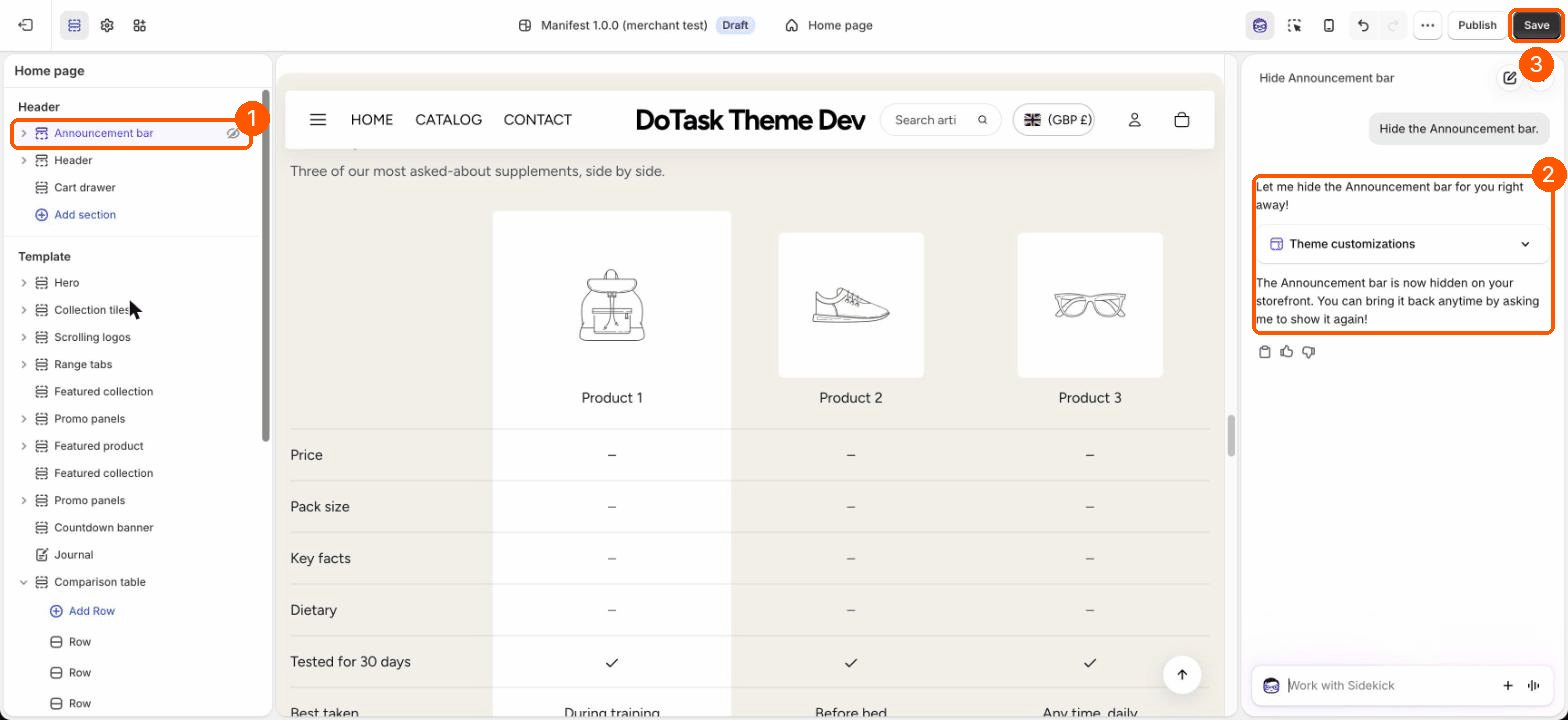
1. Say "the theme's … section"
Ask for a comparison table and Sidekick may reply that your theme doesn't have one and offer to write new code. Manifest does have one. Name it as the theme's section and say not to generate code, and Sidekick adds Manifest's own section, with all its settings.
Add the theme's Comparison table section under the hero. Don't generate code.
2. Click what you mean first
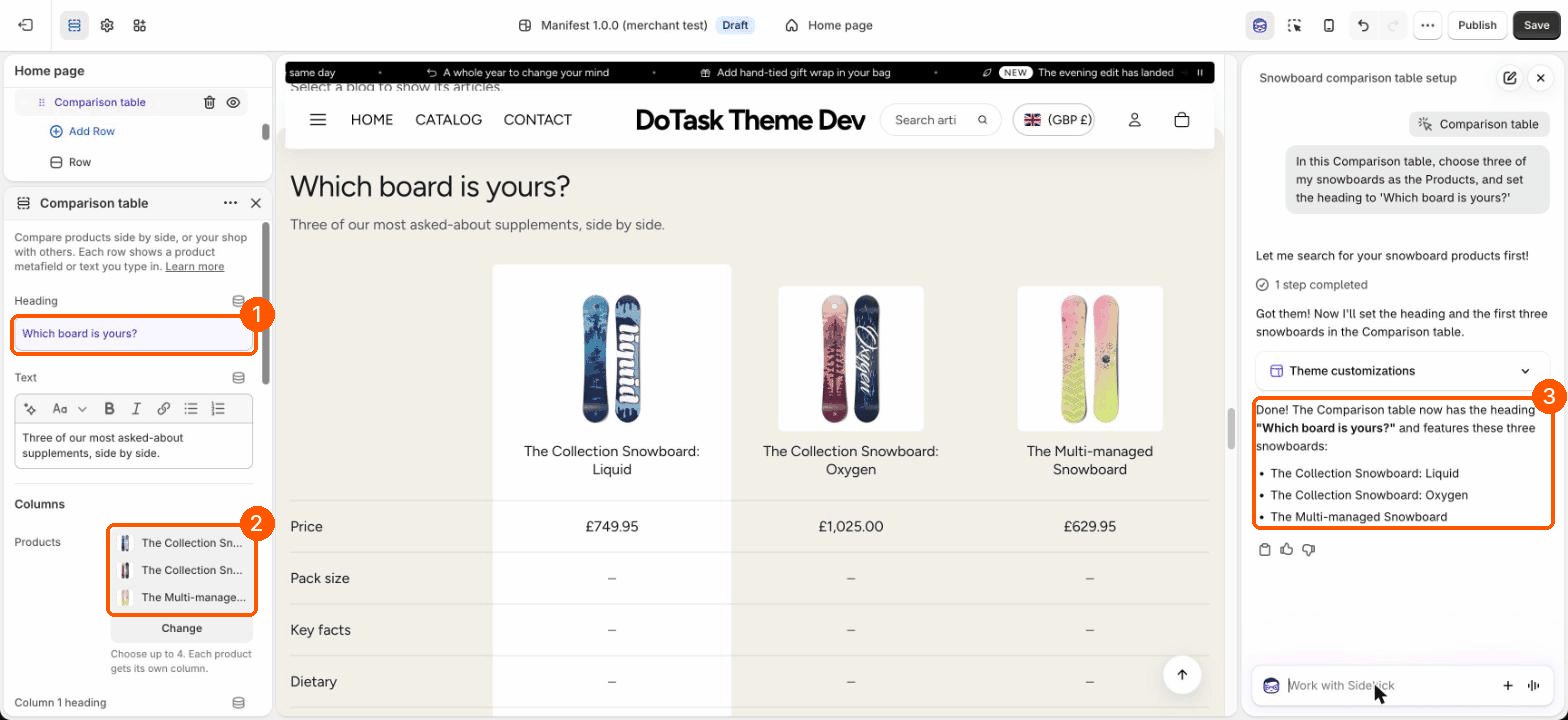
Sidekick works on whatever is selected: its name shows as a small label above the message box. Click a section or block in the preview or the list, then ask. It can fill in text and pick products, collections and pages.
In this Comparison table, choose three of my snowboards as the Products, and set the heading to 'Which board is yours?'
3. For Theme settings, close the block first
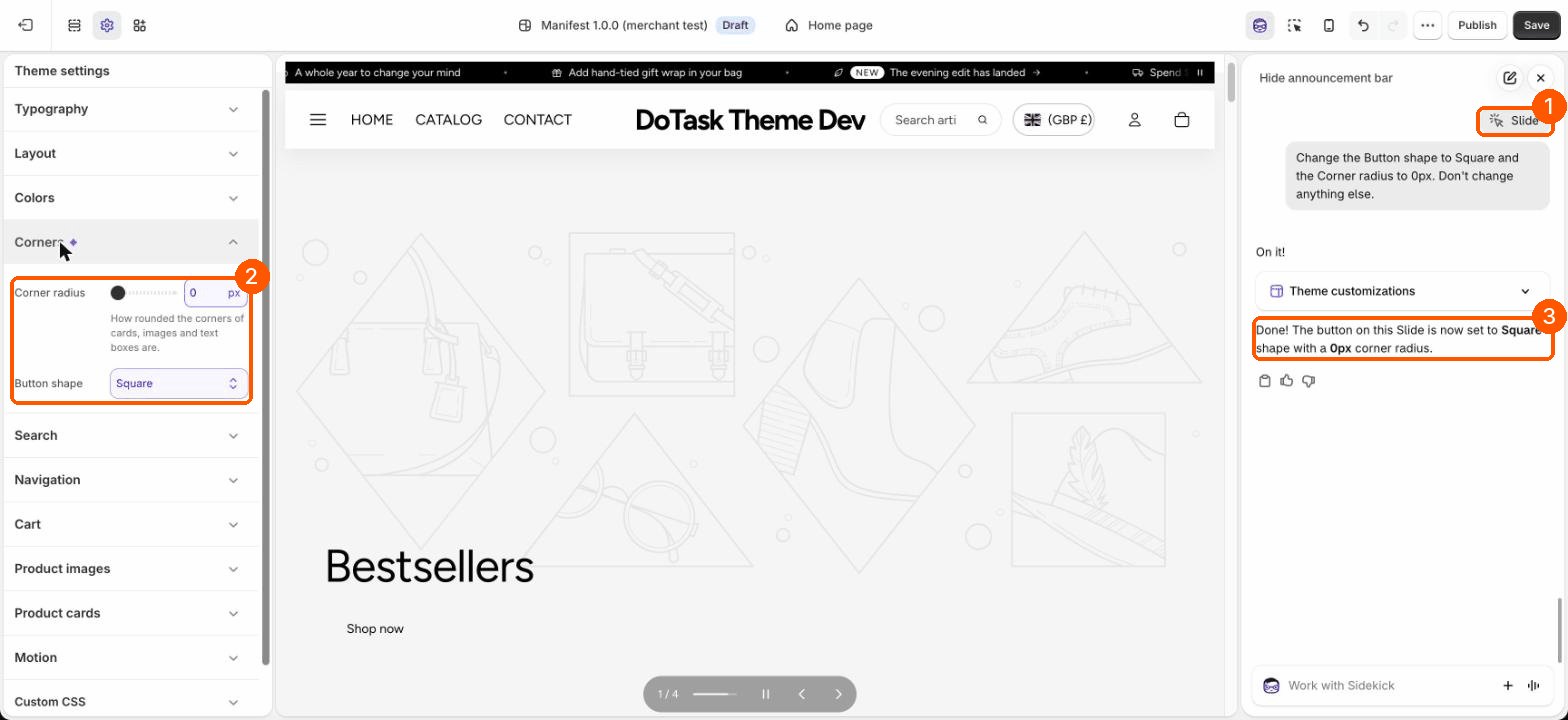
With a block still selected, Sidekick can mix things up. In our test it changed the Button shape and Corner radius in Theme settings correctly, but said it had changed "the button on this Slide". Close the block (the × at the top of its settings) before asking for store-wide changes, and check under Theme settings: changed groups have a purple dot.
4. Add a section, click Save, then add its blocks
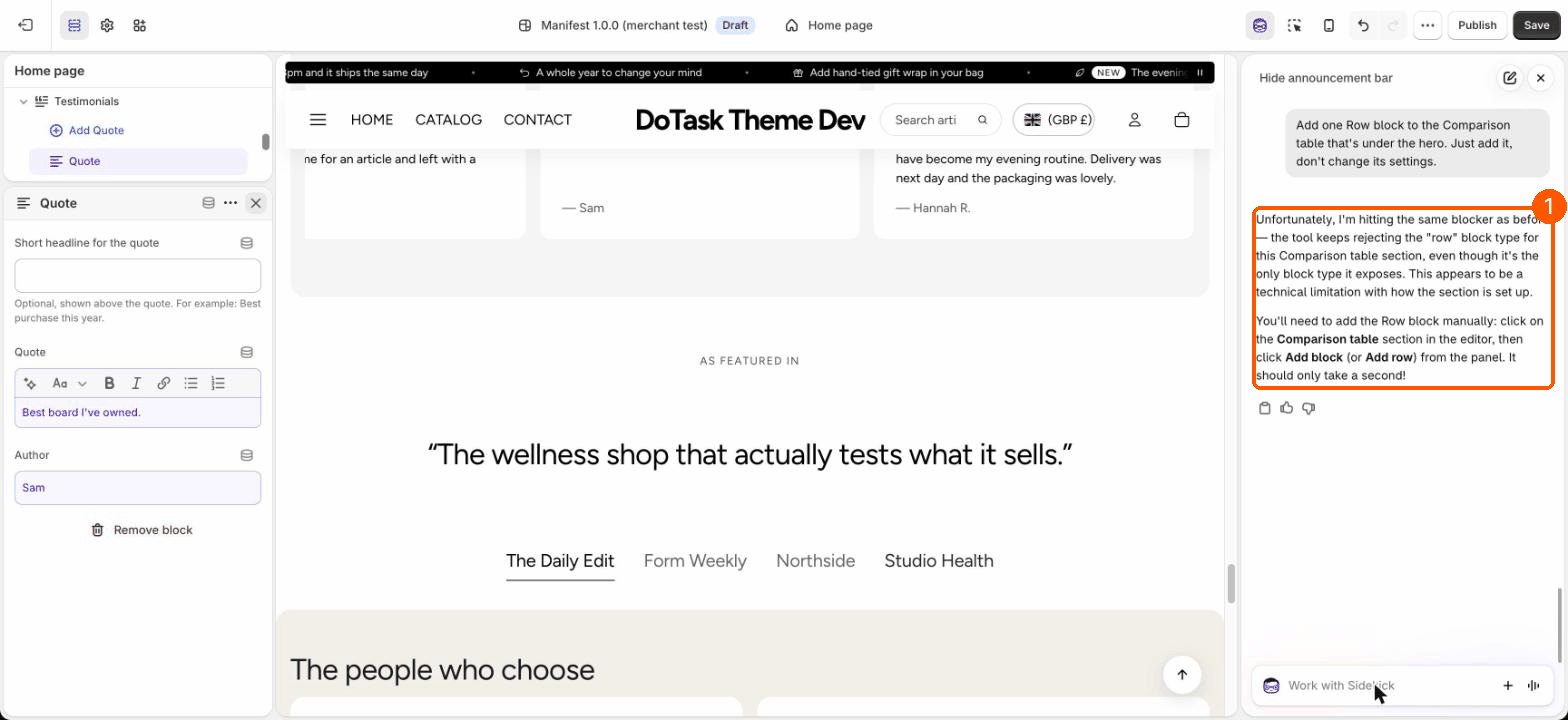
Sidekick can't add blocks to a section it has only just added. It says the section doesn't accept that block, which isn't true. Click Save after adding the section, and the same request works.
5. Add a block, then fill it in
When Sidekick adds a block, it usually leaves the block's example text as it is, even when its reply says it filled it in. The new block is selected afterwards, so a second, short request fills it in.
In this Quote block, set Quote to 'Best board I've owned.' and Author to 'Sam'.
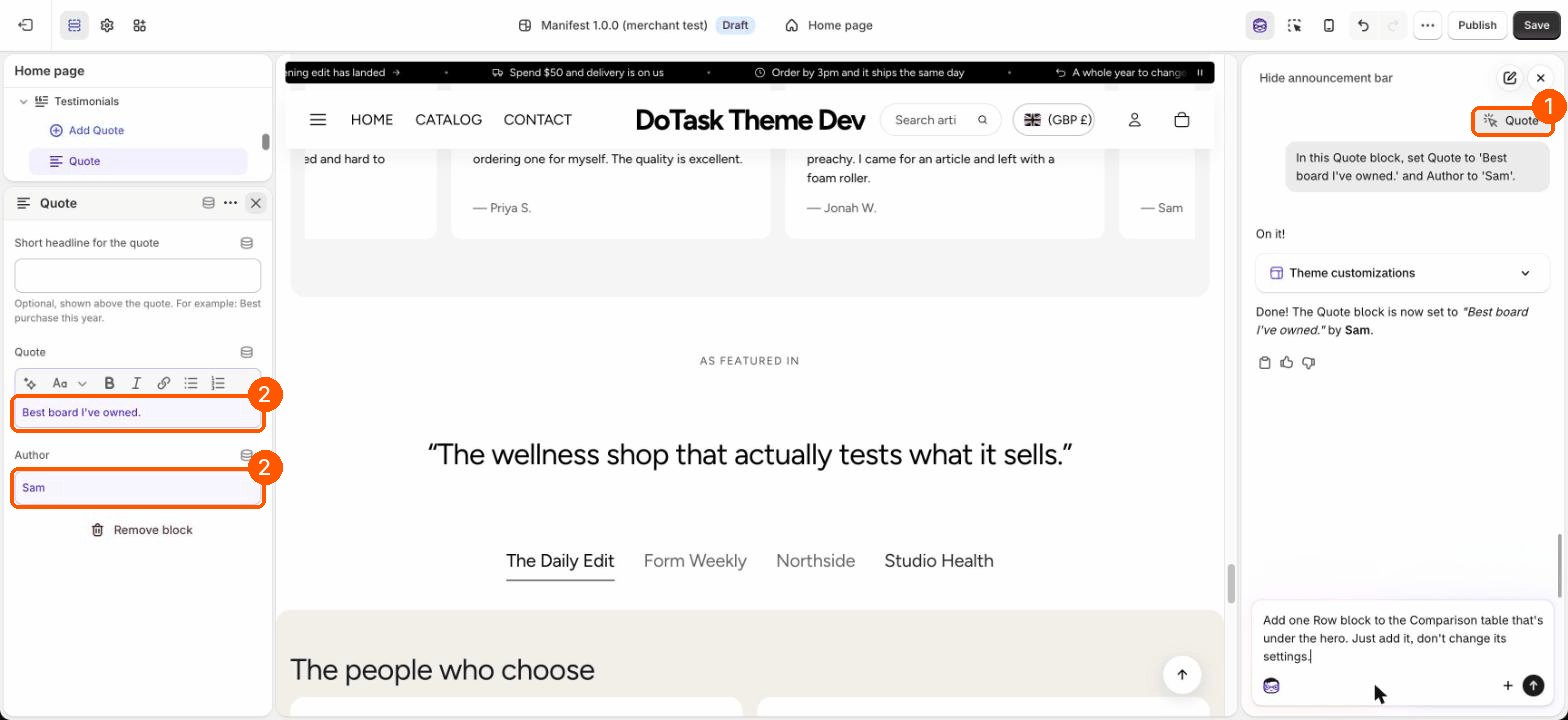
6. Believe the preview, not the reply
Sidekick's replies are sometimes wrong: it has said "All done!" after removing rows it was asked to replace, and mentioned a row that didn't exist. Before you save, look at the preview and at the section list on the left.
Undo, Discard and Save
- The undo arrow (or ⌘Z) steps back one change at a time. It can go back past your last save, so watch the preview as you click.
- To throw away everything since your last save, click the exit arrow at the top left and choose Leave page.
- Save puts the changes on your theme. On your live theme, that's your store, straight away.
Use Manifest's names
Sidekick finds settings by their names, so use the ones the editor shows. The ones people ask about most:
- Theme settings: Primary and Display font, Heading weight, Base text size, Page width, Space between sections (Compact, Normal, Roomy), Corner radius, Button shape (Pill, Rounded, Square), Use animations.
- Colors: color schemes 1 to 6 in Theme settings, Colors, and each section's Color scheme.
- Product cards: Image shape, Show second image on hover, Show specs and pack size, Show subtitle, Sale badge.
- Sections: Hero, Collection tiles, Range tabs, Featured collection, Comparison table, Editorial, Statement, Story, Page tabs, Image steps, Lookbook, Before and after, Testimonials, Trust badges, People cards, FAQ, Help center, Gallery, Ingredients, Numbers, Scrolling logos, Scrolling text, Flexible section.
- Header group: Announcement bar and Header. Overlays: Popup and Age verifier.
What to do yourself
- Choose photos and videos in image and video settings.
- Connect settings to product fields with the database icon. See Show different details on each product.
- Menus live in Content, Menus in your admin, outside the editor.
- Anything Sidekick gets wrong twice: do it by hand. Each section's guide in this help center shows how.