
Browse the Manifest help
Collection pages and filters
The collection banner, filters and sorting, promo tiles in the grid, pagination and quick add.

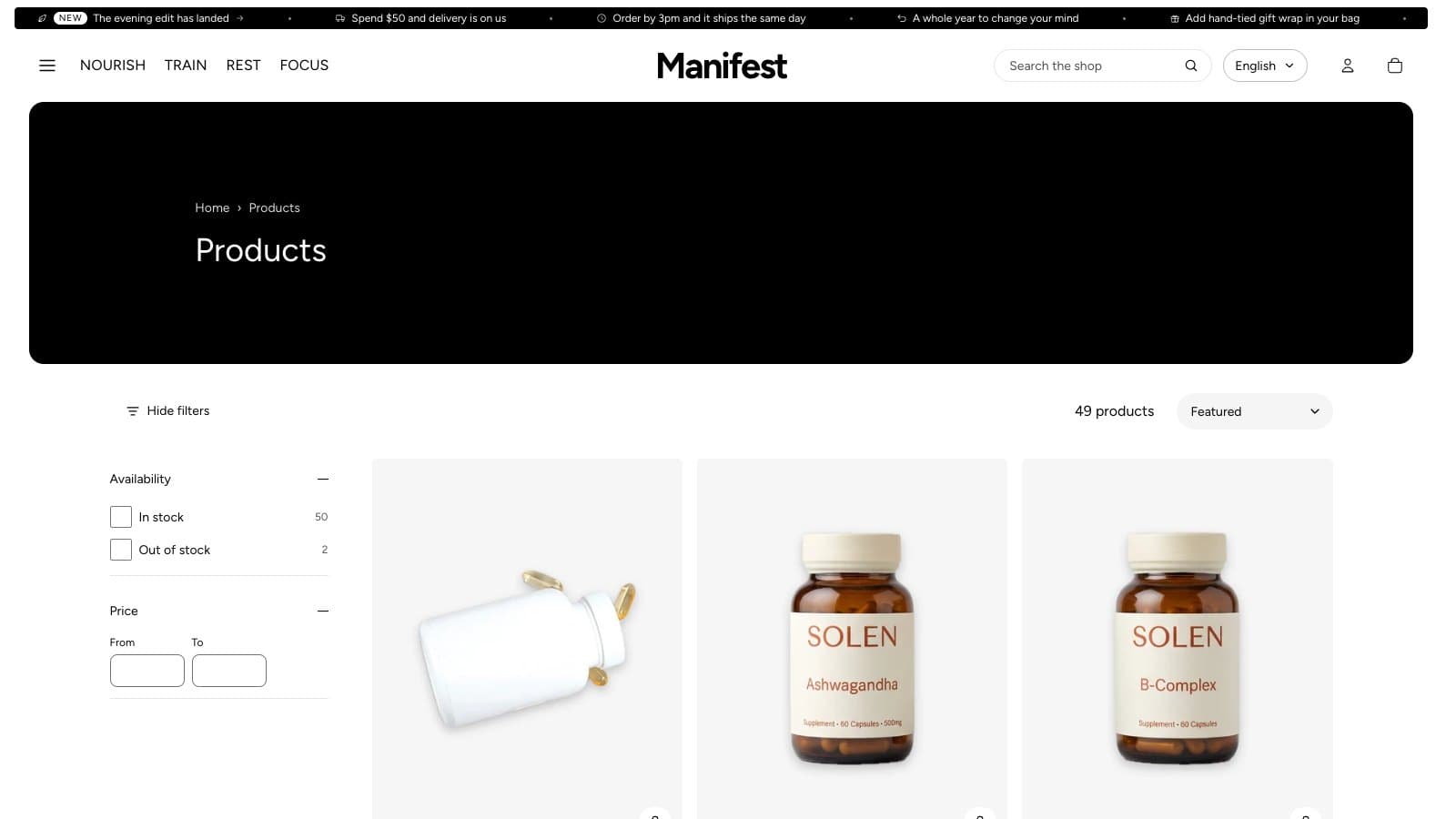
Filters and sorting
Filters come from Shopify's Search & Discovery app: install it (free) and choose filters such as availability, price, product type, vendor and options. Color options show as swatches. Filters open from Show filters above the grid and apply without reloading the page.
On phones, filters open as a sheet from the bottom of the screen, closed with its X, a tap on the page behind, or Escape. Above the grid, the values of your first list filter (the one you place first in Search and Discovery, such as Product type) show as chips in a row, so the most useful filter is one tap away.
Section settings
- Products per page (8–48) and Pagination: page numbers, a Load more button or infinite scroll.
- Columns on large screens (2–5) and Columns on phones (1 or 2).
- Show collection image in banner, Show filters and Show sorting.
- Show breadcrumbs.
- Collection navigation: pick your main menu, and a collection that is a menu item with a dropdown shows its sister collections as links under the banner.
Promo tiles
Add up to three Promo tile blocks to place a photographic card inside the product grid. Position in grid puts it before a given product on the first page; Width makes it one or two columns wide. Without a photo, it takes the collection's image or its own color scheme.
Quick add and quick view
Product cards carry a cart button. A product with nothing to choose goes straight into the cart: the bag pulses, a tick shows, the cart count hops and the cart opens. On phones the button's words always show, as there's no hover to reveal them.
A product with options, such as flavors or sizes, says Choose options and opens a quick view with the gallery, options and buttons, sliding up from the bottom on phones. To skip that and add the first available option straight away, set Theme settings → Product cards → Products with options to Add the first option straight away. Products sold only on subscription, and gift cards, always open the quick view.