
Browse the Manifest help
Set up products and pages with Sidekick
Let Sidekick do the typing in your admin: create a product field, fill in details, add a badge to a set of products, and start a team page. With what it did in our tests, step by step.

These are the setup jobs from Set up your store, done by asking. Each one shows the prompt we used, what Sidekick did, and what's left for you. Change the names and words to your own.
Create a product field
Open Settings, Metafields and metaobjects, Products, then ask:
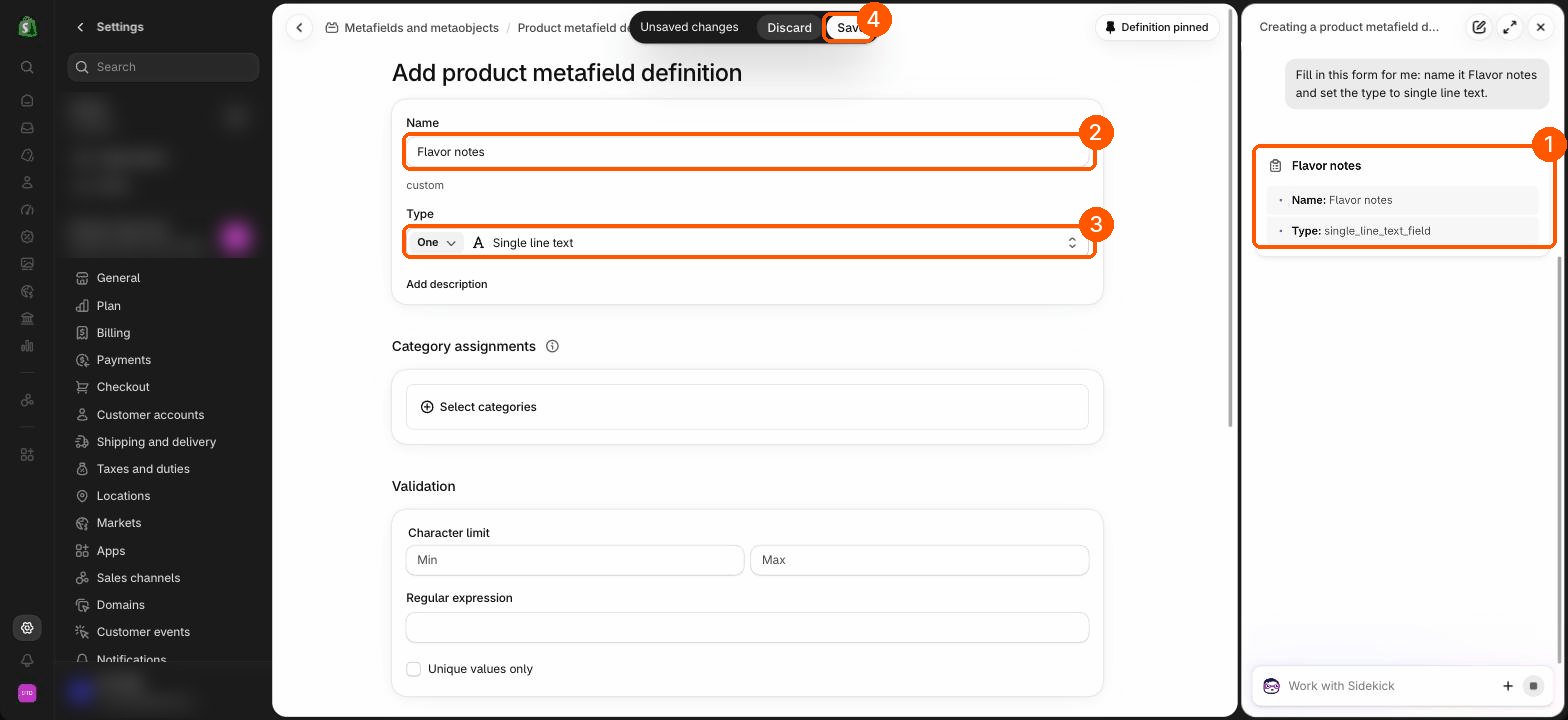
Fill in the Add definition form for me: name it Flavor notes and set the type to Single line text.
Sidekick opens the form and fills it in. You click Save.
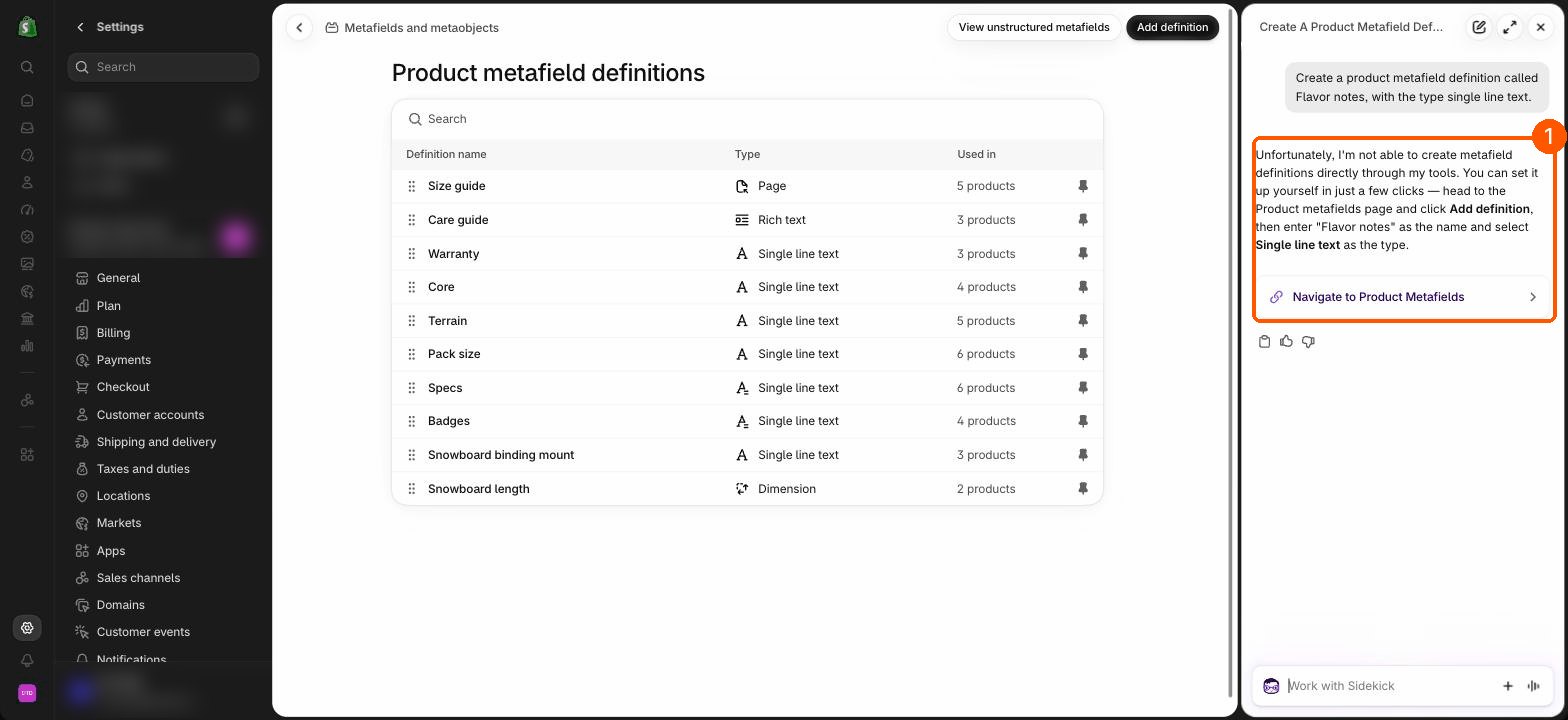
If you just ask it to create the field, Sidekick may answer that it can't, and give you the steps and a link instead. Ask again with "fill in the form for me".
Fill in details on a product
Open the product, or name it, and ask:
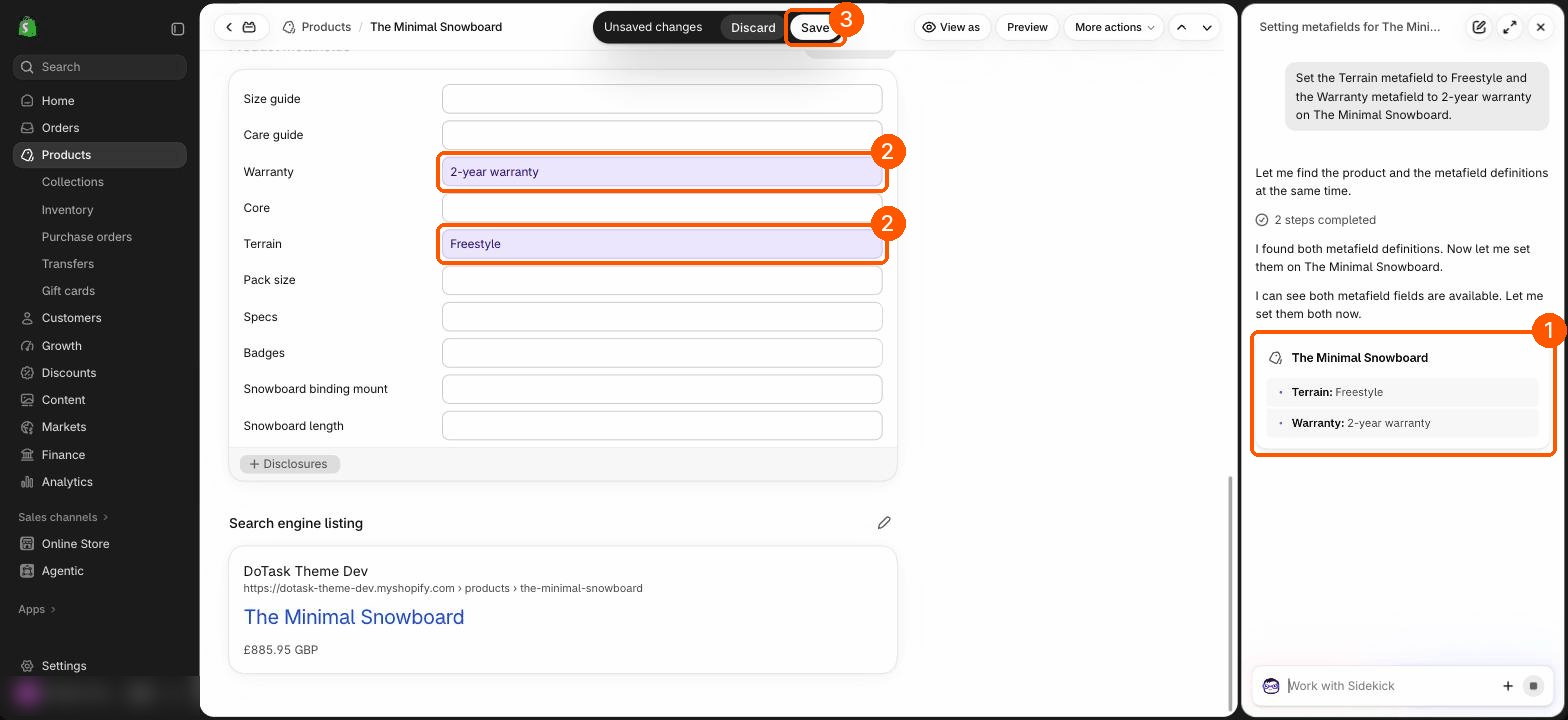
Set the Terrain metafield to Freestyle and the Warranty metafield to 2-year warranty on The Minimal Snowboard.
- Sidekick fills the fields in and highlights them in purple.
- Check them, then click Save at the top.
The same works for Shopify's standard Subtitle field:
Write a subtitle for this product in under 70 characters, in a calm, plain tone, and put it in the Product subtitle field.
Read it before you save. It shows under the title on the product page.
The same detail on several products
Add the badge New to the Badges metafield on every product whose title starts with The Collection Snowboard, but only if it isn't already there.
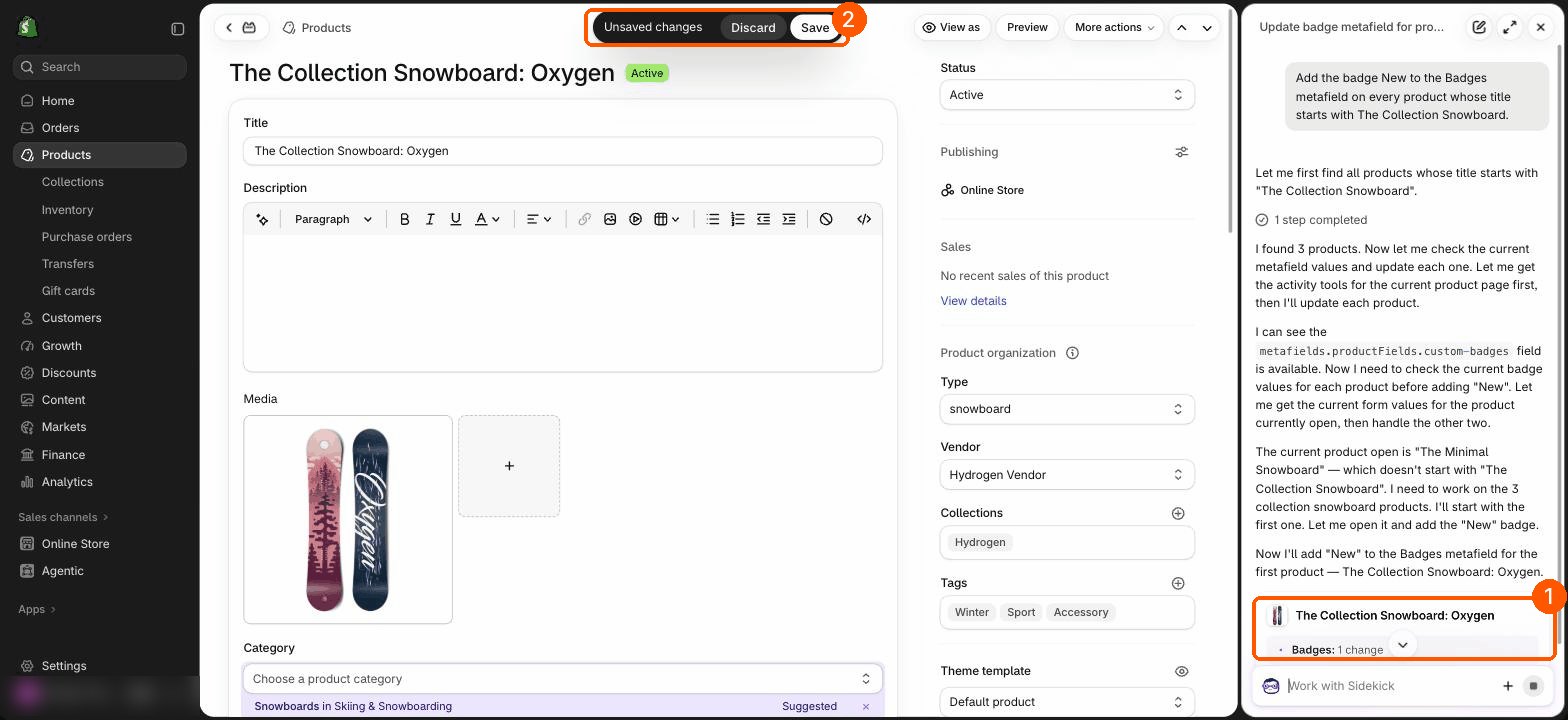
- Sidekick finds the products, then changes them one at a time. Save each one when it asks.
- Check lists for doubles. In one test Sidekick added New to a product that already had it. Manifest shows each badge once anyway, but it's tidier without.
- For dozens or hundreds of products, Shopify's bulk editor is quicker: in Products, tick the products, click Bulk edit, and add the field as a column.
Start a team page
Create a page called Jamie Chen that uses the profile template. Write two short paragraphs about Jamie, our park rider who tests every freestyle board.
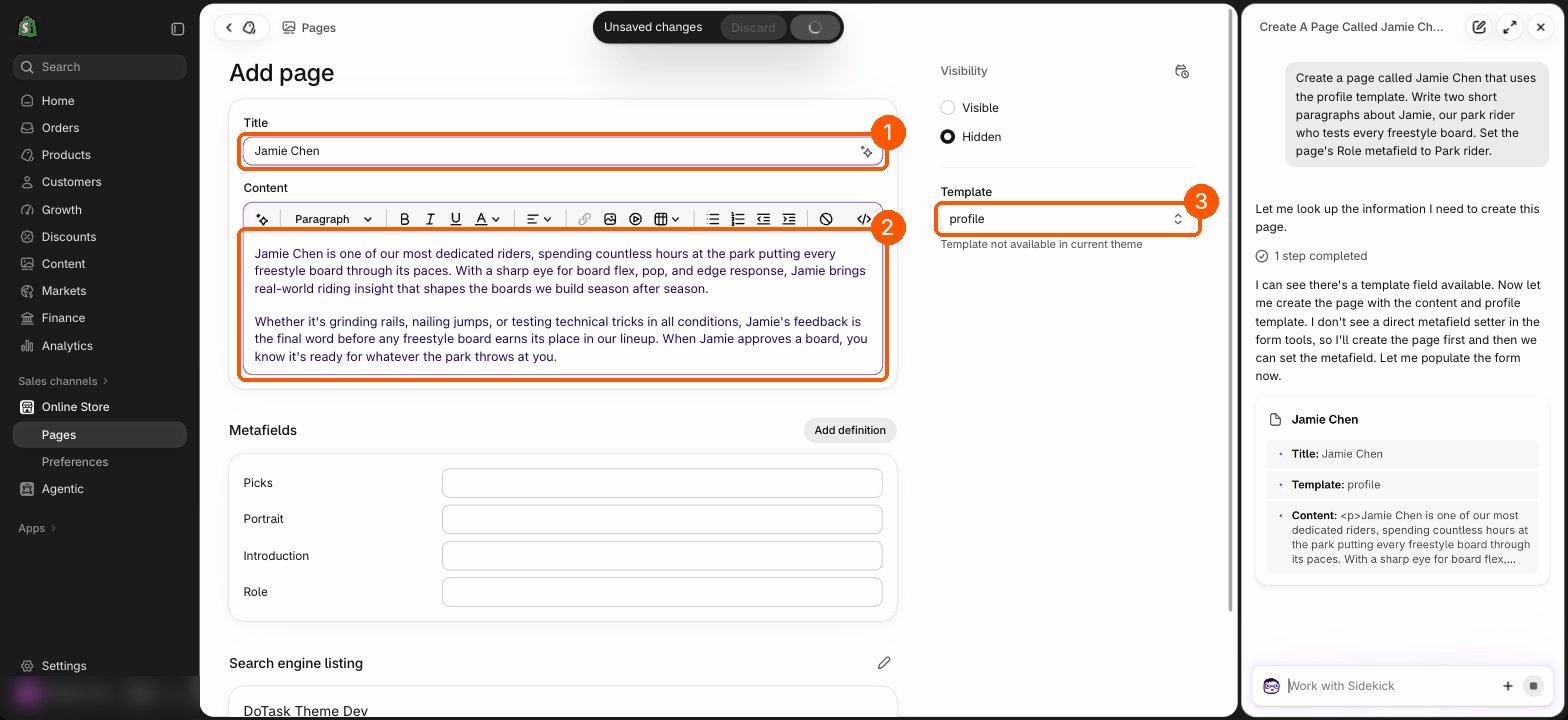
What's left for you:
- Fill in the page fields under Metafields: Portrait, Role, Introduction and Picks. Sidekick couldn't set these in our tests.
- The page starts Hidden. Set Visibility to Visible when it's ready.
- Save. See Team pages and profiles for how the page looks and the Team section that links to it.
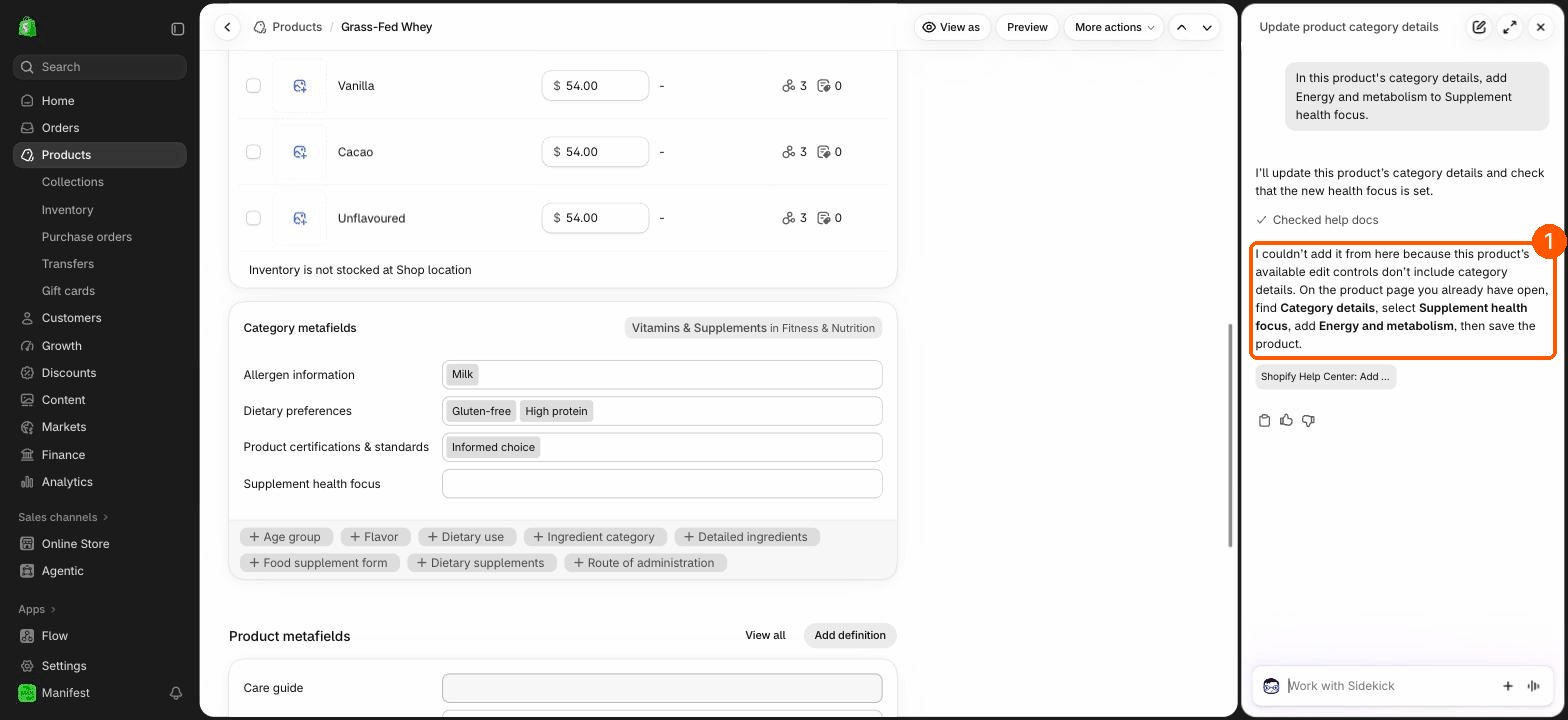
Category details: do these yourself
Sidekick couldn't choose a product's category or tick its details in our tests. It tells you so and gives you the steps.
Ask Sidekick to check your store
Sidekick can also look through your products and tell you what's missing. Good before you launch:
Which of my active products have no Product subtitle, no category, or fewer than three photos? List them.
List every product that has a badge: tag, and the badge each one shows.