
Browse the Manifest help
Install Manifest and find your way around
Add the theme from the Theme Store, try it before it goes live, and learn where its sections, groups and settings live in the editor.

Add the theme
- Open Manifest on the Shopify Theme Store and choose Try theme. It is added to Online Store → Themes as an unpublished theme, so your live store is untouched.
- Press Customize to open it in the theme editor. Everything below happens there.
- When you are happy with it, press Publish. You can switch back to your previous theme at any time from Online Store → Themes.
How the editor is organized
- Sections are the building blocks of a page. Add them with Add section, drag them into order, and hide or remove them from the left-hand list.
- Blocks are the parts inside a section, such as the slides of a hero or the questions of a FAQ. Add, reorder and remove them under their section.
- The header, the announcement bar and the footer are shared by every page. The popup and the age check live in the Overlays group at the bottom of the list.
- Theme settings (the paintbrush icon) hold everything that applies to the whole store: fonts, color schemes, corners, search, cart and motion.
- Use the page picker at the top of the editor to move between the home page, a product page, a collection page, the cart and your other templates.
Start from the demo
The demo store (https://manifest-v6xzfzwe.myshopify.com) shows every section in use. Each setting you see there is one you have too; the pictures and words are yours to replace.
Pick a preset
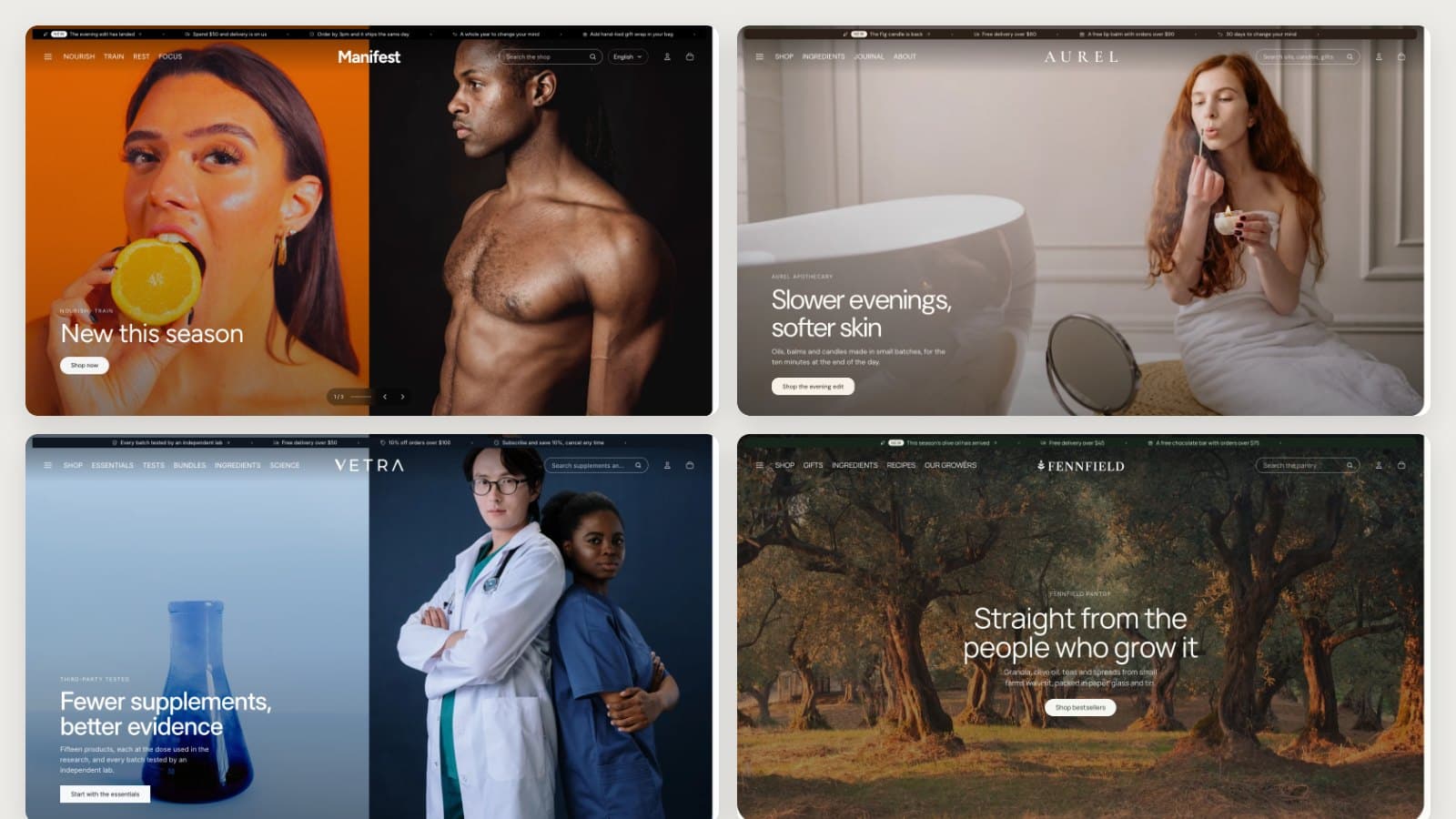
Manifest comes in four presets: Manifest, Aurel, Vetra and Fennfield, each named after its demo store. A preset is the same theme with its own fonts, colors and example pages. On the Theme Store listing, pick the preset you like, then choose Try theme. Each preset has its own demo store, so you can see it filled in first.
- Manifest (https://manifest-v6xzfzwe.myshopify.com): every section in use, on one store.
- Aurel (https://manifest-ritual-1m12bs2c.myshopify.com): a small maker. The home page shows Collection tiles with a highlighted word in the heading, a Product story with its chapters on alternating sides, a Bundle builder, an Ingredients row and the journal.
- Vetra (https://manifest-clinic-mebmtvd7.myshopify.com): a science-led brand. The home page shows Numbers tucked under the hero, six Collection tiles to shop by goal, an Ingredients row and a journal called The science.
- Fennfield (https://manifest-grove-p1bkirsm.myshopify.com): a pantry store. The home page shows Collection tiles, a Bundle builder with three products over three, an Ingredients row and a recipes journal.
Aurel, Vetra and Fennfield also bring an About page, a help page (a Help center section above one FAQ box per topic) and an Ingredients page. To use one for your own page, open the page in Online Store → Pages and choose about, faq or ingredients under Theme template.