
Browse the Manifest help
Product story and ingredients
Tell a product's story in short chapters beside a picture that changes as they scroll, then show what's inside with tappable dots.

Add the Product story section below the product. On larger screens a picture stays in place while short chapters scroll past, and it changes to each chapter's picture as that chapter comes into view, with a line and a count (02 / 04) showing where the shopper is. On phones each chapter shows its own picture above its text. Scrolling is never taken over.
Chapters
Add up to eight Chapter blocks, each with a small label, a heading, text and a picture, such as What it is, What's inside, How to take it and How we tested it. Connect the text or picture to a product metafield to give every product its own story from one template.
Image position
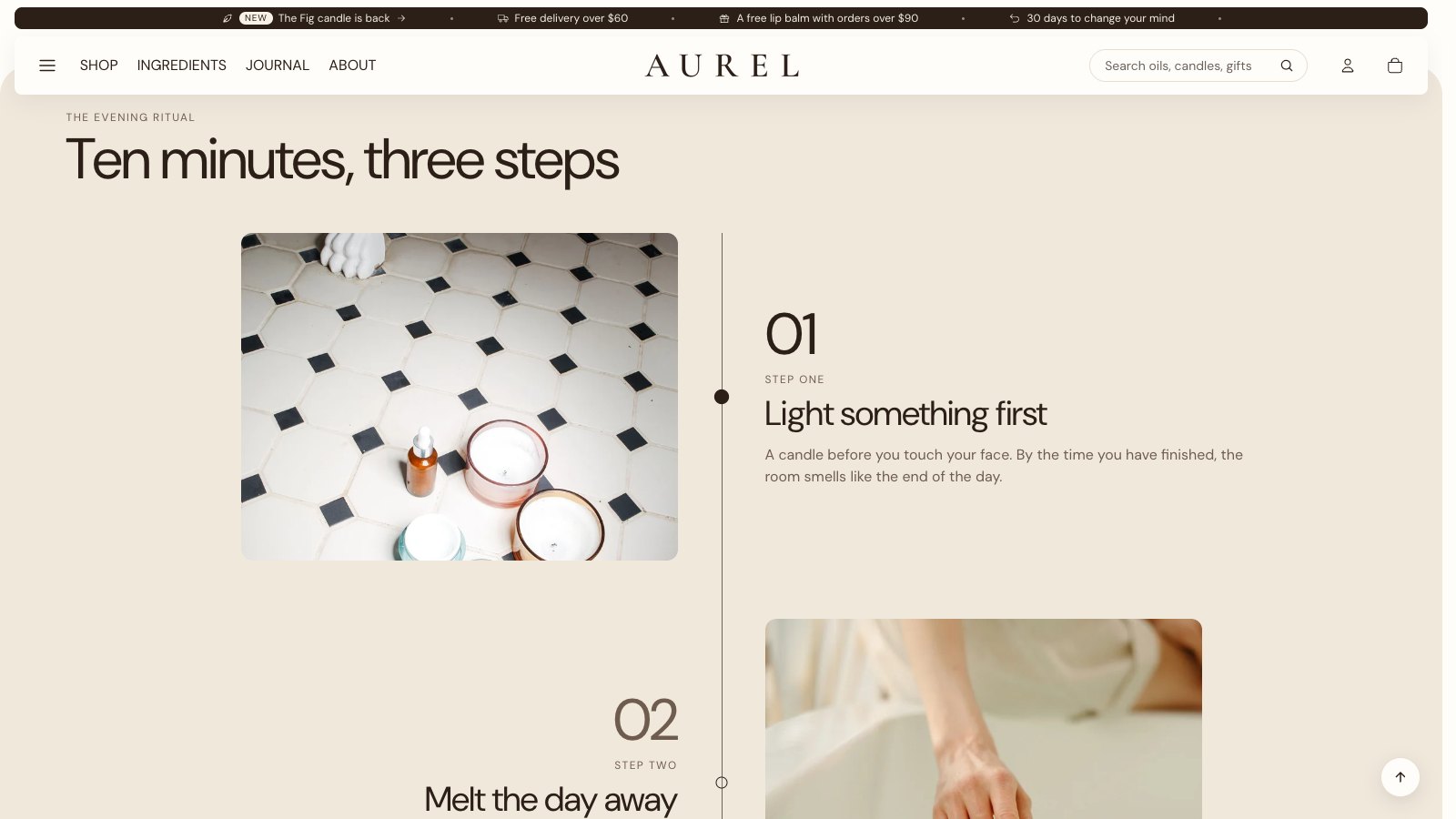
- Left or Right: one picture stays in place on that side while the chapters scroll past it, as described above.
- Alternate: each chapter sits beside its own picture, and the sides swap from one chapter to the next. A timeline runs down the middle, with a large number for each chapter and a marker that fills in as the shopper reaches it. As the shopper scrolls, the line draws down, each picture opens out from the line, and the words slide away from it.
Alternate needs pictures on the chapters. Without any, the chapters show as text. As each chapter first scrolls into view, its picture opens out and its words slide in, once, in every browser. They follow Use animations in Theme settings, and stay still for visitors who ask their device for reduced motion.
Ingredients
- Choose an Ingredients image, such as the product's packshot. It keeps its own shape, so dots stay where you put them.
- Add an Ingredient block for each ingredient: its name, amount (such as 200 mg), source and a short description.
- Move each dot into place with its position sliders.
Shoppers tap a dot to read about that ingredient; on phones it opens from the bottom of the screen. With Show ingredient list on, every ingredient is also listed under the picture, so nothing is hidden behind the dots.
Want a row of ingredient cards on the home page or an Ingredients page instead? Use the Ingredients section: see Telling your story.