
Browse the Manifest help
Product details with no setup (category details)
Pick a product's category in Shopify, tick its details, and Manifest shows them on the product page by itself: dietary lines, allergens, certifications and a Product details list. Plus Shopify's ready-made Subtitle and Care guide fields.

When you choose what a product is (its category), Shopify gives it a set of ready-made details for that kind of product: Dietary preferences and Allergen information for a supplement, Material and Fabric for a T-shirt, Flavor for a snack. You tick the answers from a list. There is nothing to create and nothing to connect: Manifest reads them on its own.
Step 1: Choose the product's category
- In your Shopify admin, open Products and choose a product.
- Find Category, under the photos. Start typing what the product is, such as Vitamins or T-shirts, and pick the closest match. Shopify often suggests one, marked Suggested.
- Save.
Step 2: Tick its details
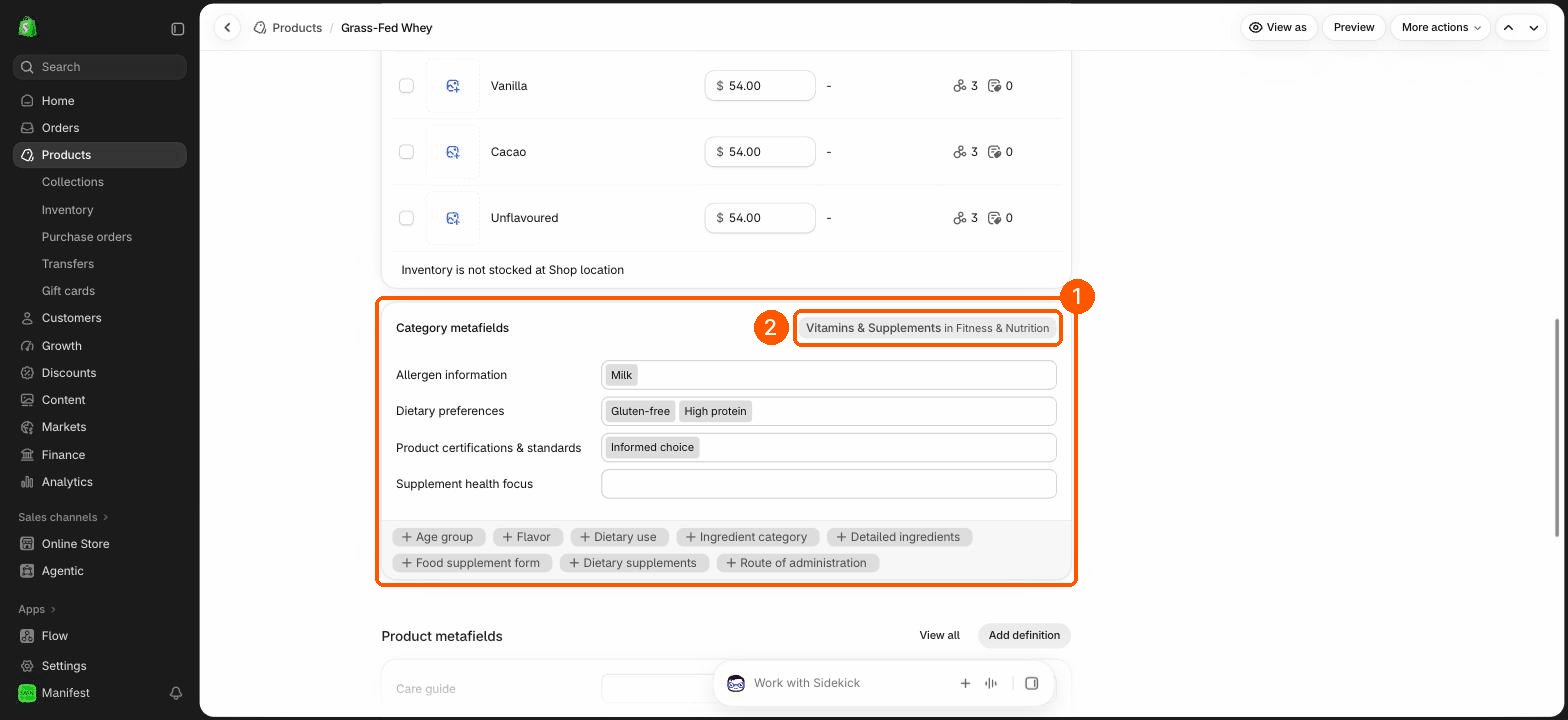
- Scroll down to Category metafields. Shopify lists the details for this category.
- Click a field and choose the answers from the list, such as Gluten-free and High protein. You can choose several.
- Want more? The buttons with a + under the list, such as + Flavor or + Age group, add other details for this category.
- Save. Leave a field empty and it simply doesn't show.
Step 3: See them on your store
Open the product on your store. Nothing needs connecting in the theme editor.
Where Manifest shows them
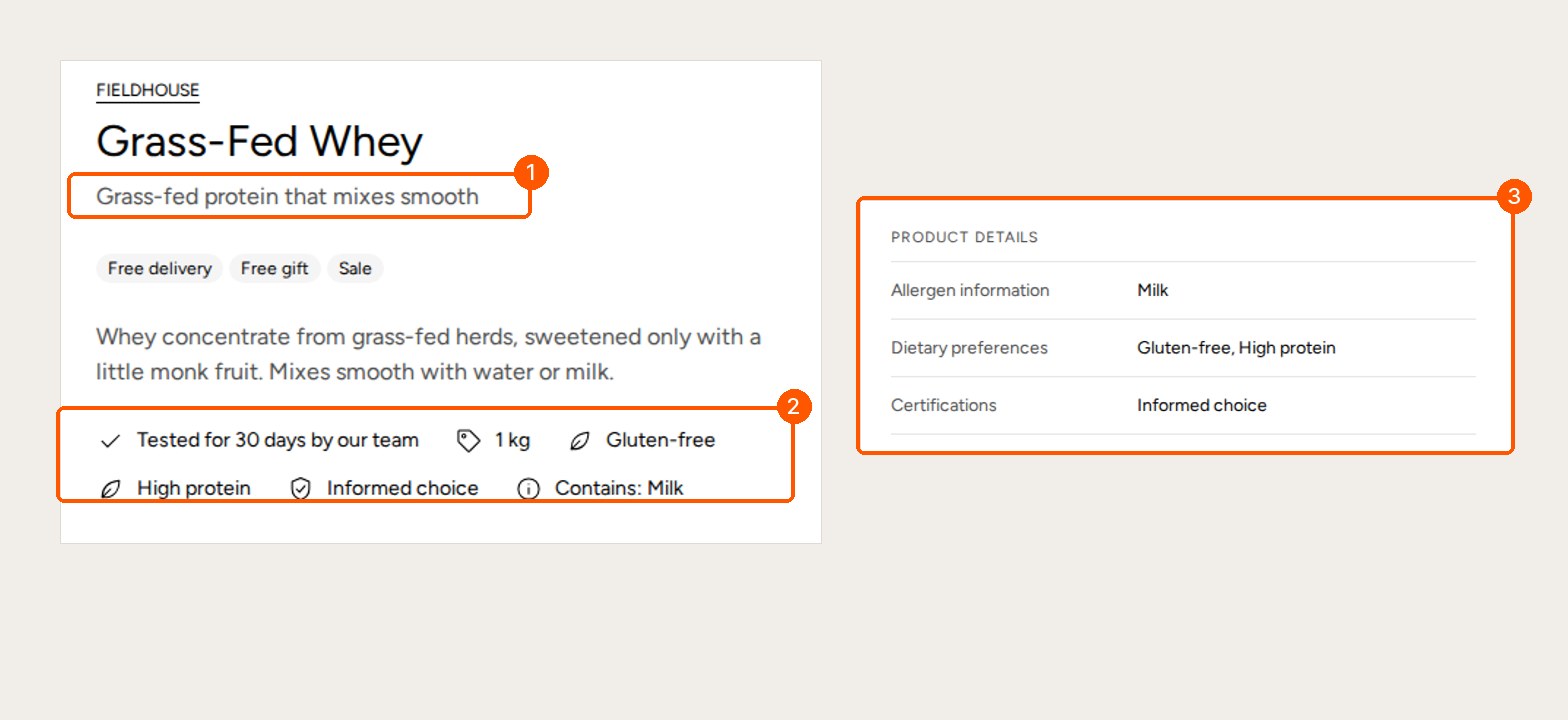
- Product details block: a tidy list of every detail you ticked, under a heading you choose. Add it under Product in the theme editor. Layout shows them as a List or as Rounded tags. Details to leave out hides any by name, separated by commas, such as Color, Age group.
- Icons with text block: under From the product's details, tick Add dietary preferences, Add certifications and Add allergens. Each dietary preference and certification gets its own line with an icon; allergens read Contains: Milk, Soy. Your own lines stay above them.
- Comparison table: a row can read any detail. Set Where the values come from to Product metafield and type the detail's key, such as shopify.dietary-preferences. Find a key in Settings, Metafields and metaobjects, Products.
- Filters: in Shopify's Search & Discovery app you can add a detail, such as Dietary preferences, as a filter on collection pages. See Filters and product suggestions.
Shopify's Subtitle and Care guide fields
Shopify also keeps two standard fields ready for every product. They aren't on until you add them, which takes a minute, and then Manifest uses them without connecting.
- Go to Settings, then Metafields and metaobjects, then Products.
- Click Add definition, then click in the Name box. Shopify lists its standard fields. Choose Product subtitle.
- Save. Do the same again for Care guide.
- Open a product. Under Product metafields, type its subtitle (up to 70 characters, such as Grass-fed protein that mixes smooth) and its care guide. Save.
- Subtitle: the product page's Subtitle block shows it when the block's own text is empty. Type text in the block only if you want the same line on every product. To show it on product cards too, turn on Show subtitle in Theme settings, Product cards.
- Care guide: shown under the description, in the same style (an accordion or plain text). Turn it off with Add the care guide in the Description block.
Questions
- My category has no field for what I need. Create your own field for it. See Show different details on each product.
- I see a detail I don't want on the page. Add its name to Details to leave out in the Product details block, or untick the matching box in Icons with text.
- Can Sidekick fill these in? Not yet: in our tests Sidekick couldn't pick categories or tick category details, so do these two steps yourself. Sidekick can fill in Subtitle and your own fields. See Set up products and pages with Sidekick.
- Does this change anything at checkout or in Google? Categories also help Shopify work out tax in some places and describe the product to Google and other sales channels, so they are worth setting anyway.