
Browse the Manifest help
Build Manifest with Sidekick
Sidekick is Shopify's assistant, built into your admin. Tell it what you want in plain words and it does the clicking. What it can do for Manifest, what it can't yet, and how to get good results.

Sidekick is the assistant built into your Shopify admin. You type what you want, such as "Set the Terrain field to Freestyle on this product", and it opens the right page and fills things in for you. Then you check and save. It's free, it's already in your admin, and it's a quick way to build a Manifest store if you'd rather describe than click.
Manifest is made to work well with it. Sections and settings have plain names Sidekick can find (ask for the Comparison table and it knows what you mean), the product page reads Shopify's standard fields without setup, and a Flexible section is ready for new blocks Sidekick writes for you.
Where to find it
- In your Shopify admin: the Sidekick box, Work with Sidekick, at the foot of the screen or in the panel on the right. It works on every admin page, and knows which page you're on.
- In the theme editor: the Sidekick button at the top right, or press ⌘ and . together on a Mac (Ctrl and . on Windows). It opens as a panel on the right.
- On your phone: in the Shopify app.
The one rule: Sidekick fills in, you save
Sidekick doesn't change your store behind your back. It fills in the page in front of you and waits.
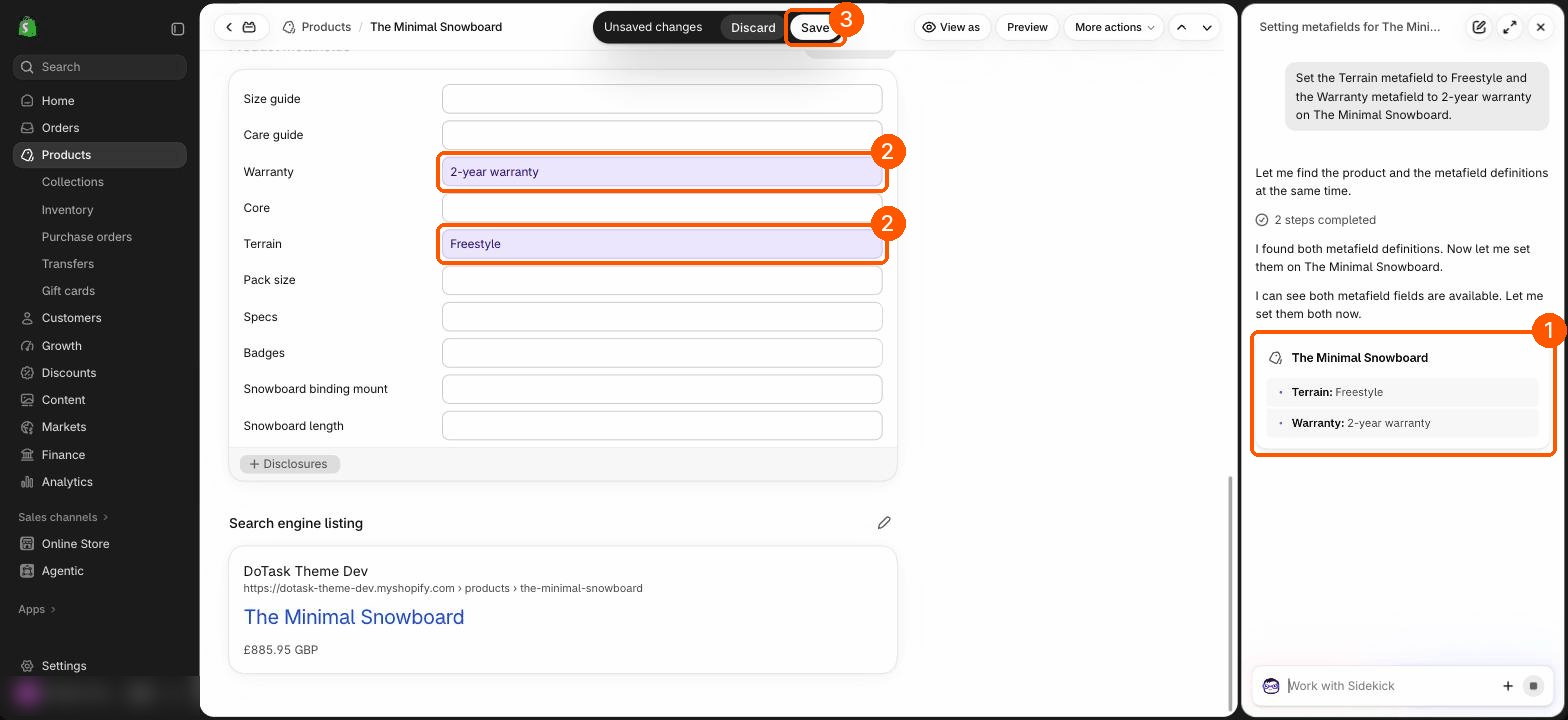
- Ask for what you want.
- Sidekick opens the page and fills in the fields. Everything it changed is highlighted in purple, and it lists what it did in the chat.
- Check the highlighted fields. Change anything that's not right.
- Click Save to keep it, or Discard to throw it all away.
What it can do for Manifest
We tested each of these on a Manifest store in September 2026. Sidekick changes often, so it may do more by the time you read this.
- Fill in product fields (metafields), such as Badges, Specs, Terrain or Subtitle: yes, on the product you're viewing or one you name.
- The same value on many products: yes, one product at a time, with a save for each. Check for doubles. For hundreds of products, Shopify's bulk editor is faster.
- Create a new product field: it fills in the Add definition form for you and you click Save. If it says it can't, ask it to fill in the form.
- Create a team page with its text and the profile template: yes. The page starts hidden, and you add the portrait, role and other page fields yourself.
- Write product descriptions, page text and journal posts: yes.
- Theme editor: hide, add, move and remove Manifest's sections, change Theme settings, pick products and fill in text on a selected section or block, and add blocks. Follow the six habits in Customize Manifest with Sidekick in the theme editor and it works first time.
- Make new blocks: yes, in the Flexible section. See Make new blocks with Sidekick.
What to do yourself (for now)
- Choose a product's category and tick its details. Sidekick couldn't do this in our tests. It takes a minute: see Product details with no setup.
- Fill in page fields, such as a team member's Portrait and Role.
- Connect a setting to a field with the database icon in the theme editor. See Show different details on each product, Step 3.
- Choose photos and videos for sections, and anything else you want to look exactly right.
How to ask so it works first time
- Use the names you see. Say Comparison table, Icons with text or Button shape, just as the theme editor shows them. Each guide here quotes the names exactly.
- Say where. "On the home page", "on the Grass-Fed Whey product", "under the hero". In the theme editor, click the section in the preview first, then ask.
- Put exact words in quotes. "Set the heading to 'Tested before we stock it'" gives you those words, not Sidekick's version of them.
- One job at a time for bigger changes. Three short requests go better than one long one, and each is easy to check.
- Say what not to do. "…only if it isn't already there" stops doubles; "don't change anything else" keeps the rest as it is.
- If it says it can't, ask it to open the page or fill in the form for you. That often works.
Good to know
- Staff accounts see only what their permissions allow. Making new blocks needs the Edit code permission.
- Making new blocks isn't on the Starter plan, and needs a purchased copy of Manifest (not a trial).
- Sidekick can be wrong, and its replies sometimes describe things it didn't do. Treat it like a quick assistant: check the purple fields and the preview before you save.