
Browse the Manifest help
FAQ and contact form
Answer common questions in an accordion, build a help page with search and topic cards, and let customers write to you.

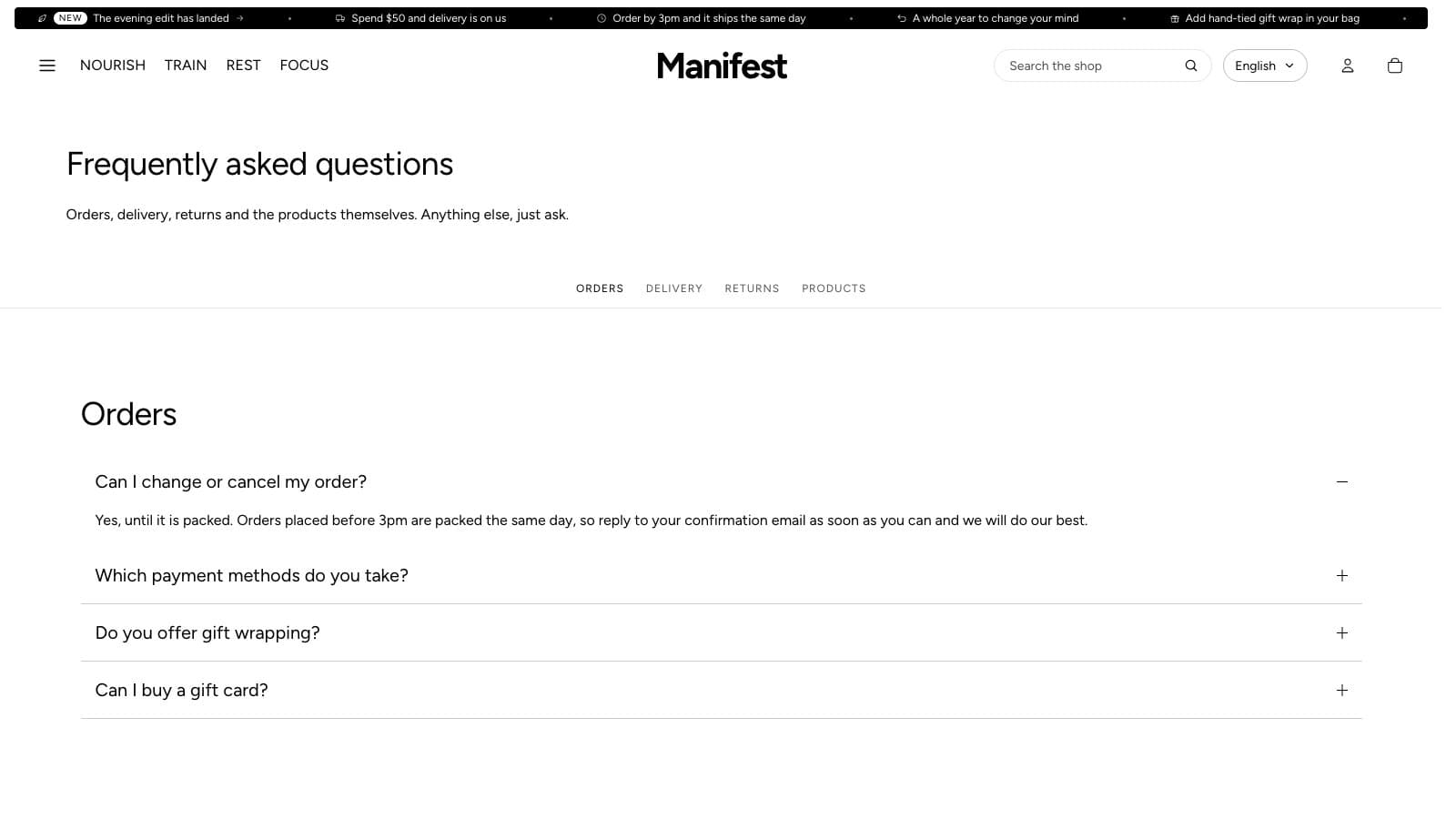
FAQ
Questions that open one at a time, with an optional photo. Up to twelve questions. Open the first question starts with the first answer showing, and a button can lead to a full FAQ page.
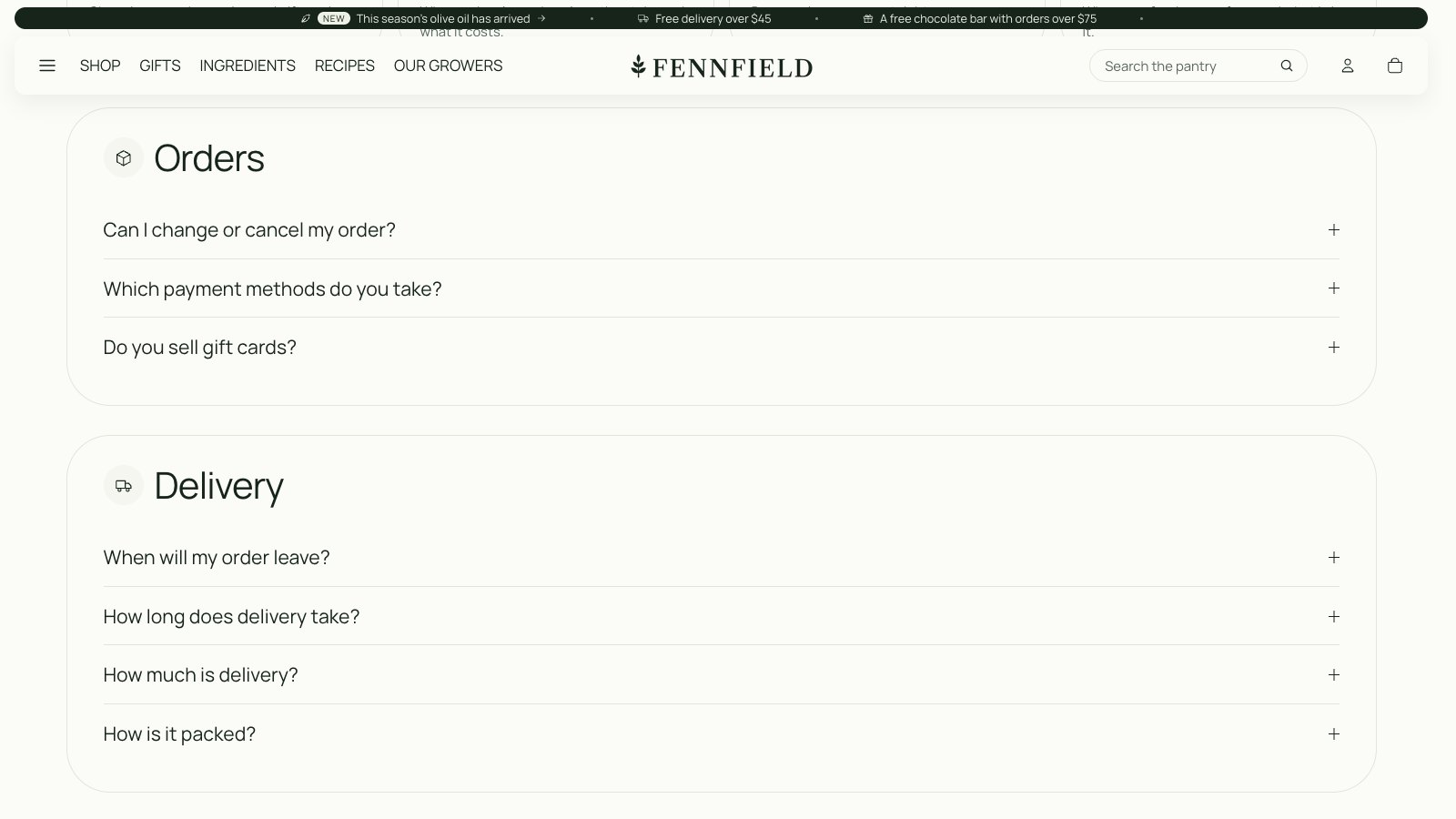
- Layout: Band across the page puts the questions on a band of color that runs edge to edge, with a large photo beside them. Box within the page keeps the section to the page width, with all the questions in one outlined box.
- Image: in the Band layout, a large photo beside the questions. In the Box layout, a small picture beside the box, with a Caption under it, such as the name of the person who answers your questions. The caption only shows in the Box layout. On phones the picture moves below the questions.
- Image shape: Square, Portrait or Landscape.
- Icon: a small icon in a circle beside the heading, such as Delivery, Returns or Lock. Choose None to leave it out.
- Card color scheme: the colors of the box that opens around an answer.
- Link name for Page tabs: a short word, so a tab in Page tabs, or a topic card in a Help center section, can jump to this section.
Help center
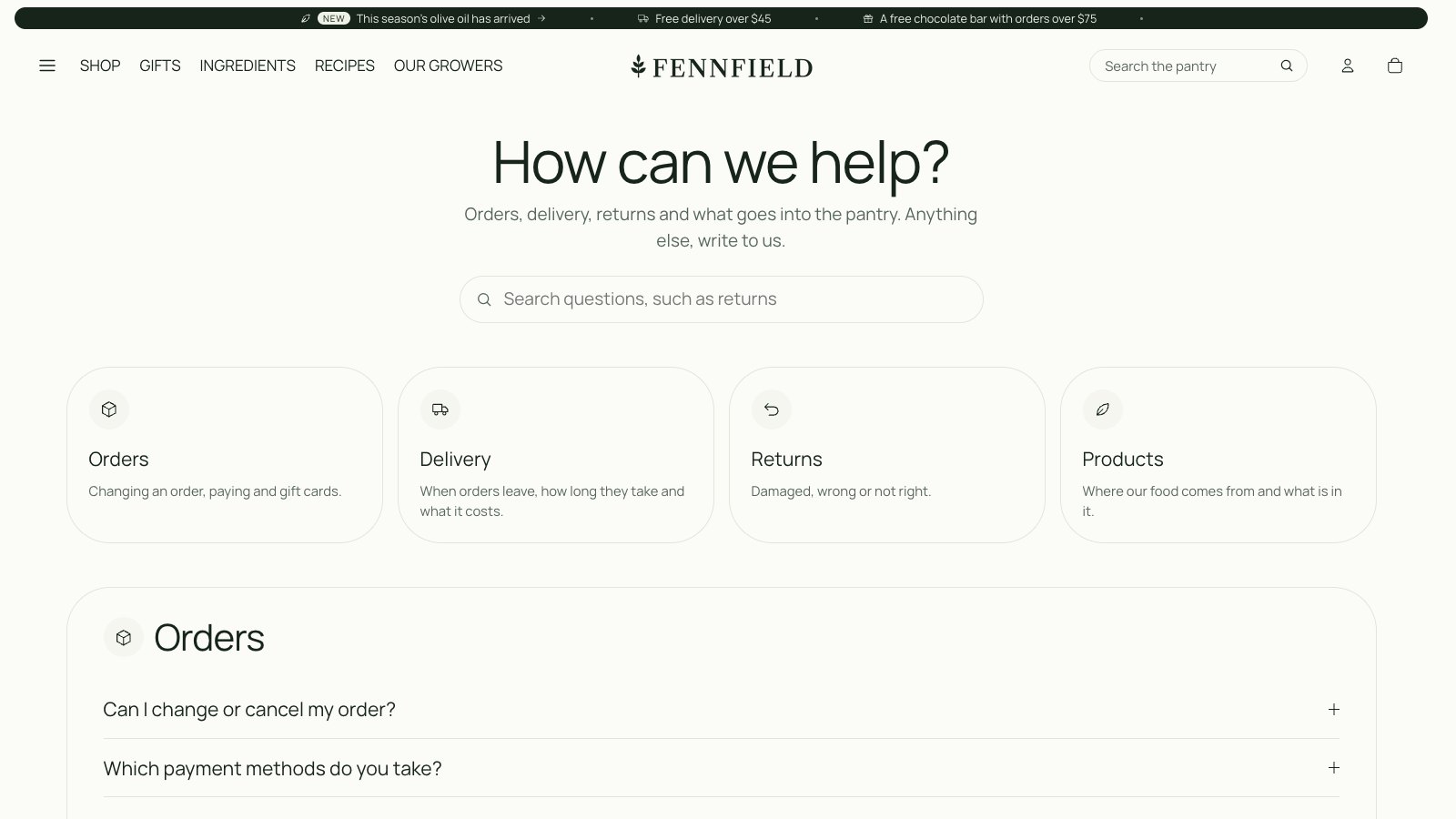
The top of a help page: a heading, a search box and a card for each topic. Shoppers type in the search box and the page's questions narrow as they type. A topic card jumps to the FAQ section for that topic further down the page.
Build a help page
- In your Shopify admin, open Online Store → Pages and open your FAQ page. Under Theme template, choose faq, and save.
- In the theme editor, open that page. Click Add section and choose Help center, then drag it to the top.
- Below it, add one FAQ section per topic, such as Orders, Delivery and Returns. Box within the page suits a help page.
- Select the first FAQ section. In Link name for Page tabs, type a short word for the topic, such as orders.
- Select the Help center section and add a Topic block. Choose its Icon, and type a Heading and a line of Text.
- In the Topic's Section to jump to, type the same word you typed in the FAQ section: orders. The card now jumps to that section.
- Repeat for each topic, up to eight, and click Save.
How the search works
- Show search turns the search box on or off.
- It searches the questions and answers in every FAQ section on the same page. Each word typed must appear in the question or its answer.
- Matching questions open, so shoppers see the answer straight away. FAQ sections with no match hide until the search is cleared.
- A line under the box says how many questions match, or that nothing matched.
Contact form
A heading, text and your contact details beside a form that you build from blocks: name, email, phone, text, a dropdown of choices, a message and a checkbox. Each field can be required and full or half width. Messages arrive in your store's email and in Shopify admin.