
Connect WhatsApp, step by step
Your own WhatsApp Business number in the doTask inbox, through Meta, in about ten minutes, with a screenshot at every step.


 WhatsApp
At the end, customers who message your WhatsApp number land in the doTask inbox, the AI Agent answers them, and your team replies from doTask. The number stays yours, in your own Meta account; doTask never sees your Facebook password or your card.
Before you start
- A Facebook login that is an admin of your business in Meta Business Suite. No business there yet? Meta lets you create one in its window.
- The phone with the number, in your hand.
- Your business name as customers should see it: your real name, normal capitals, no slogans or emoji. Meta checks it.
- A card for Meta’s billing, added after connecting. Meta bills you directly; doTask adds nothing per message.
Step 1: Open Settings → WhatsApp
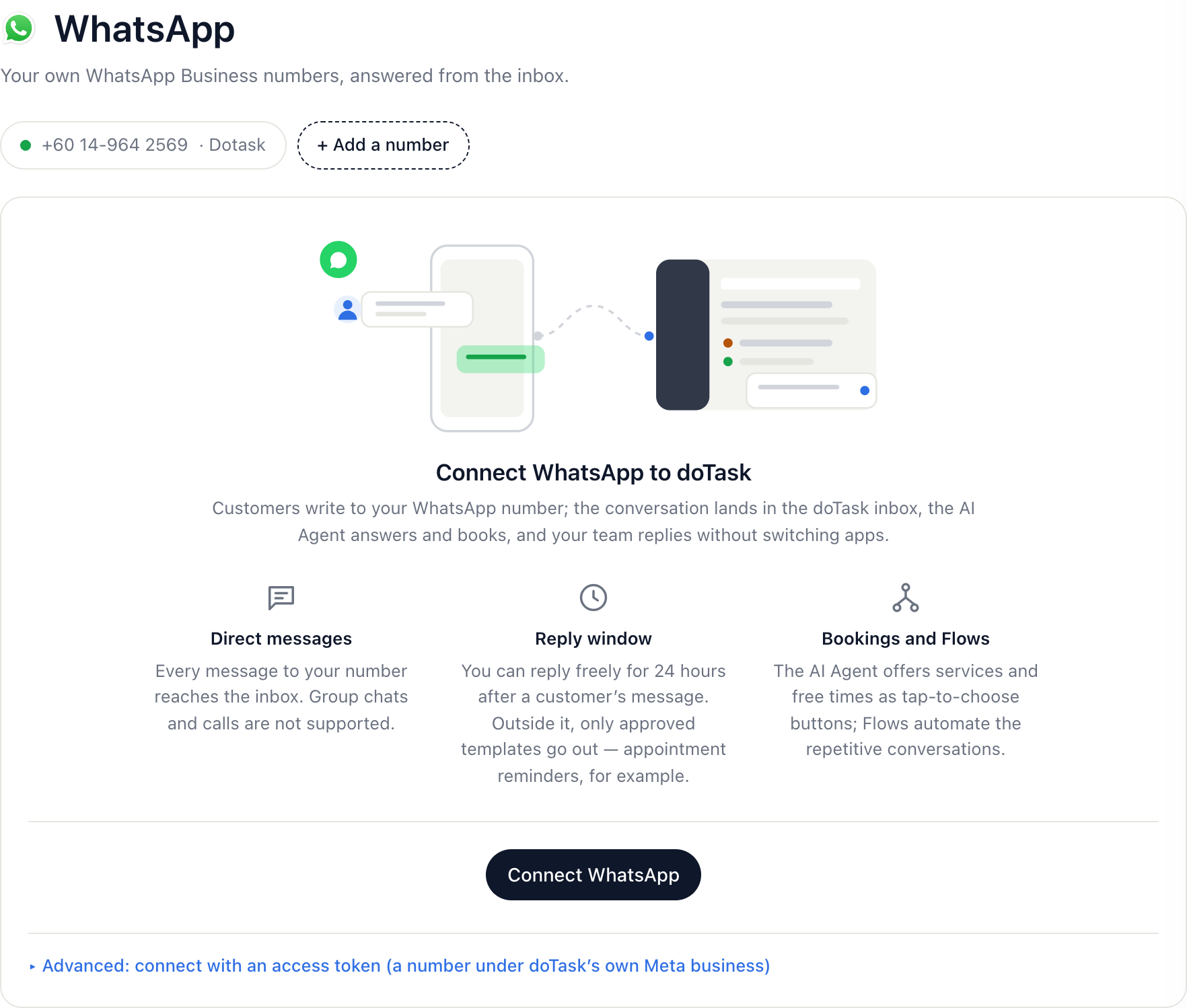
- In doTask, go to Settings → WhatsApp.
- Press Connect WhatsApp. (Already have a number connected? Press + Add a number in the row of numbers.)
Step 2: Say where the number is now
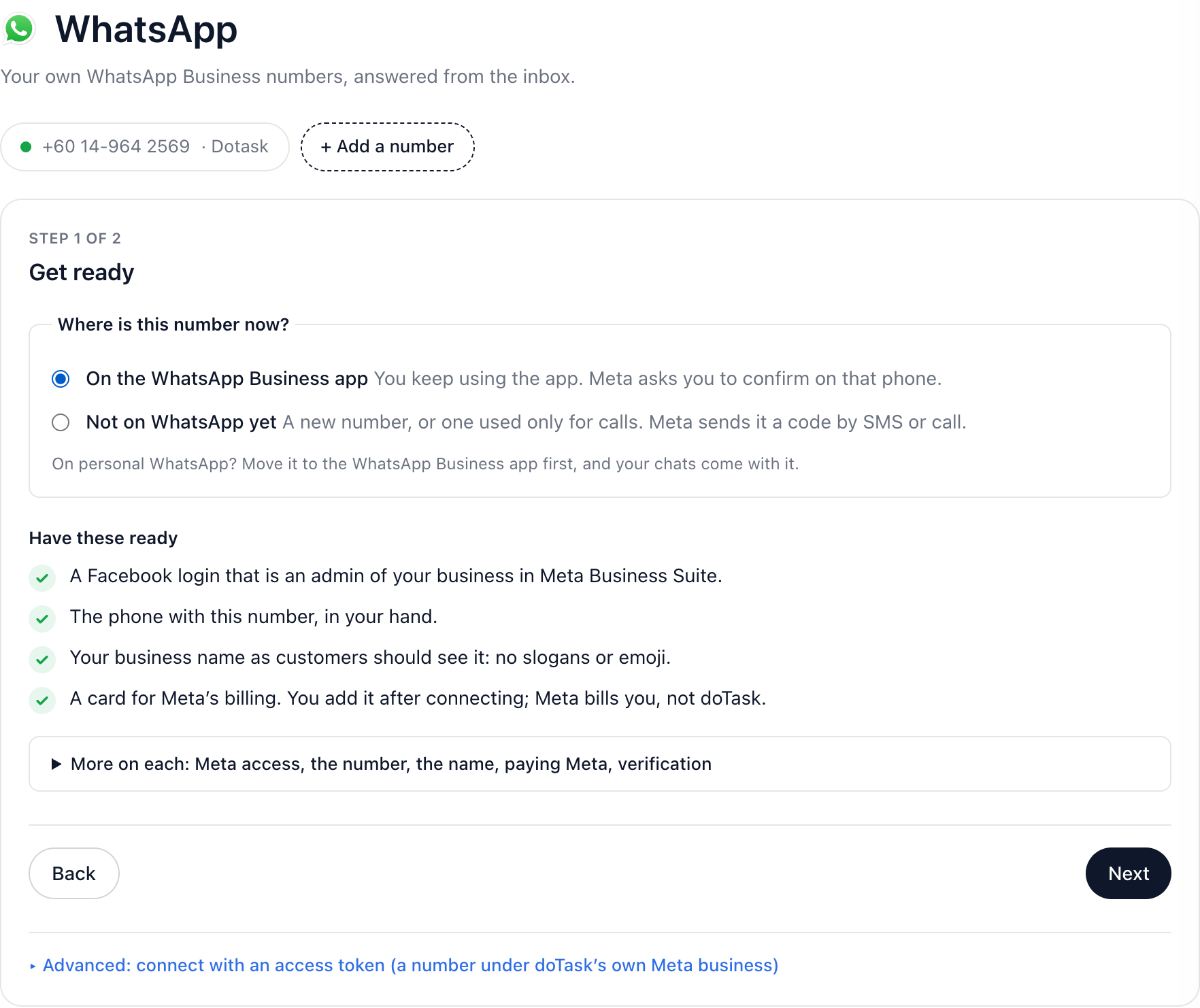
- Under “Where is this number now?”, choose On the WhatsApp Business app, or Not on WhatsApp yet.
- Check the four things under “Have these ready”. “More on each” opens the detail.
- Press Next.
Step 3: Agree to WhatsApp’s rules
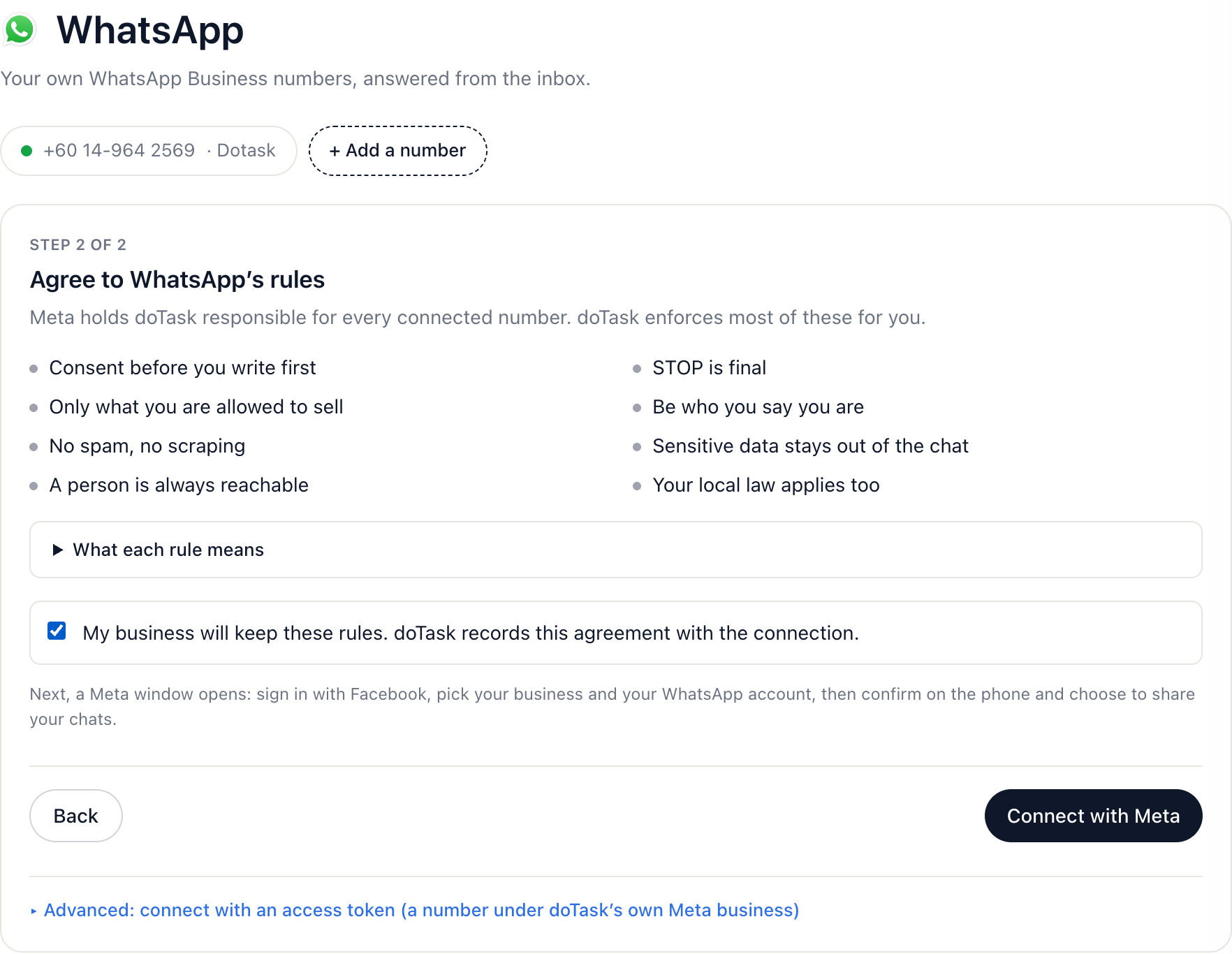
- Read the eight rules. “What each rule means” opens the full text.
- Tick “My business will keep these rules”. doTask records who agreed and when.
- Press Connect with Meta. A Meta window opens.
Step 4: Finish in Meta’s window
- Sign in with the Facebook login that is an admin of your business.
- Choose your business portfolio, then choose your WhatsApp Business account or create one.
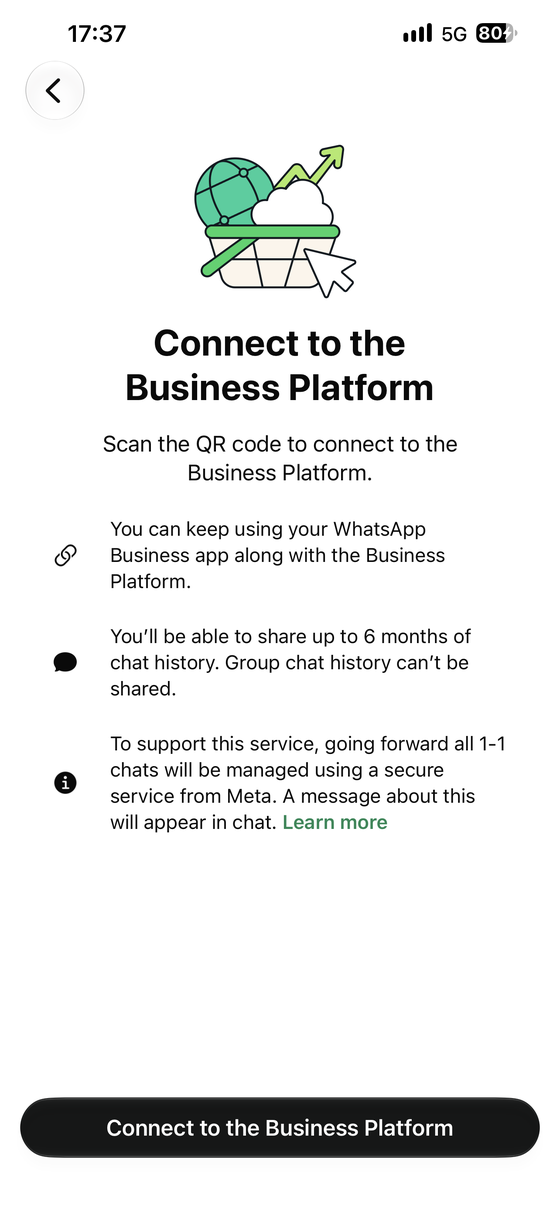
- Number on the WhatsApp Business app: Meta shows a QR code. On the phone, WhatsApp Business shows “Connect to the Business Platform”: press it and scan the code.
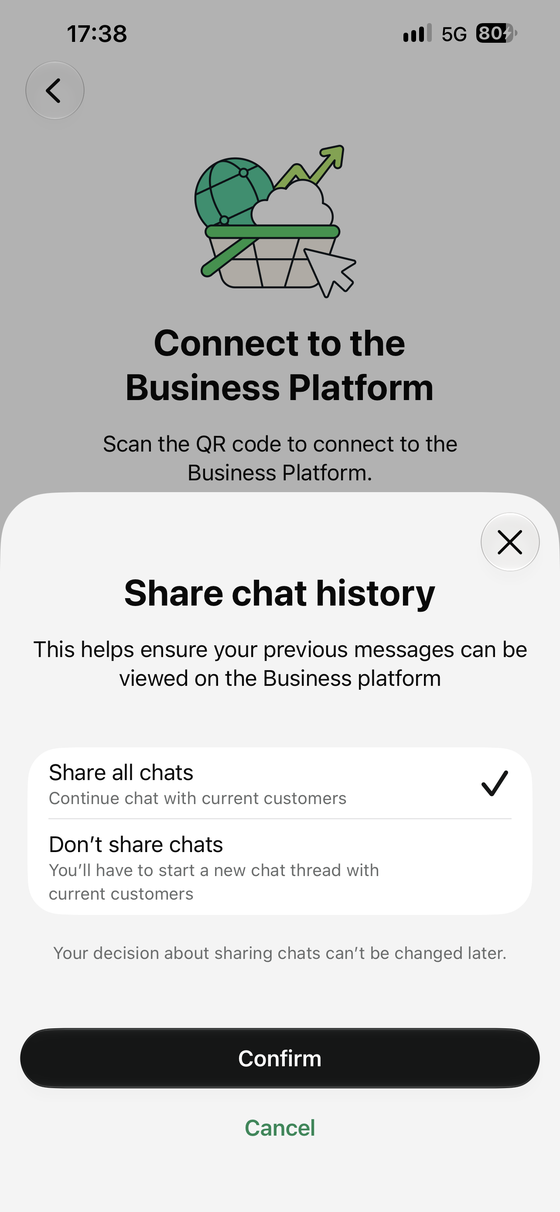
- Still on the phone, Meta asks about your chat history. Share all chats copies up to six months of one-to-one chats into doTask; Don’t share starts empty. This choice cannot be changed later, so choose Don’t share if the number also has private chats.
- New number instead: type the number, pick SMS or a call, and enter the six-digit code Meta sends.
- Confirm the display name and press Continue until the window closes.
Step 5: Check it worked
- Back in doTask, the number appears in the row at the top of Settings → WhatsApp, with tabs under it.
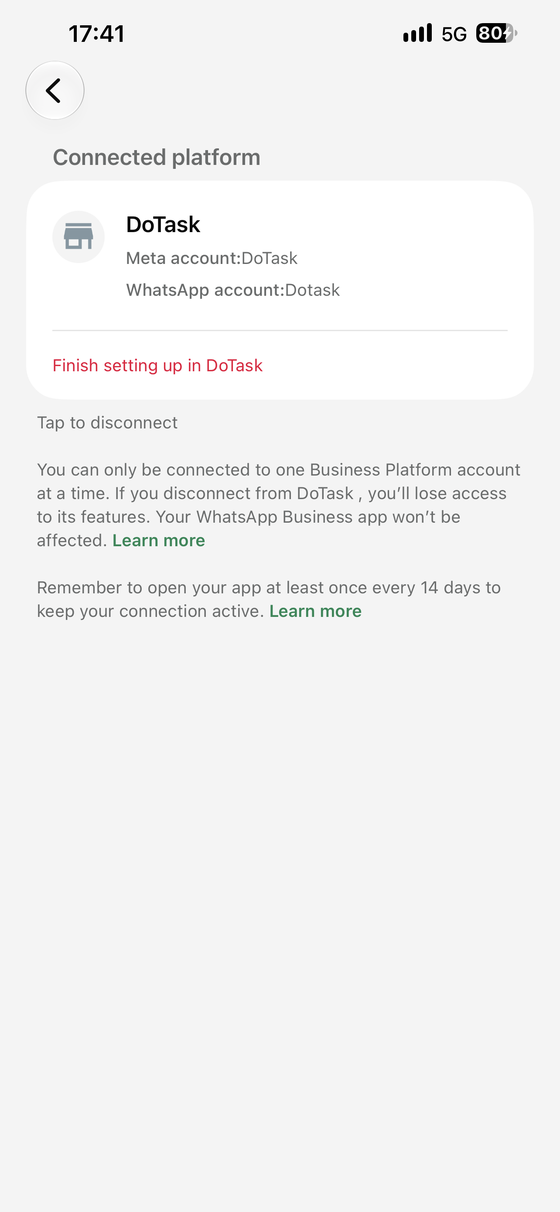
- On the phone, WhatsApp Business → Settings → Business platform shows doTask as the connected platform.
- From another phone, send your number a message. It arrives in the doTask inbox, and the AI Agent answers if it is on for WhatsApp.
- Reply from the doTask inbox. The reply arrives on the customer’s phone and also shows in your WhatsApp Business app.
Straight after connecting
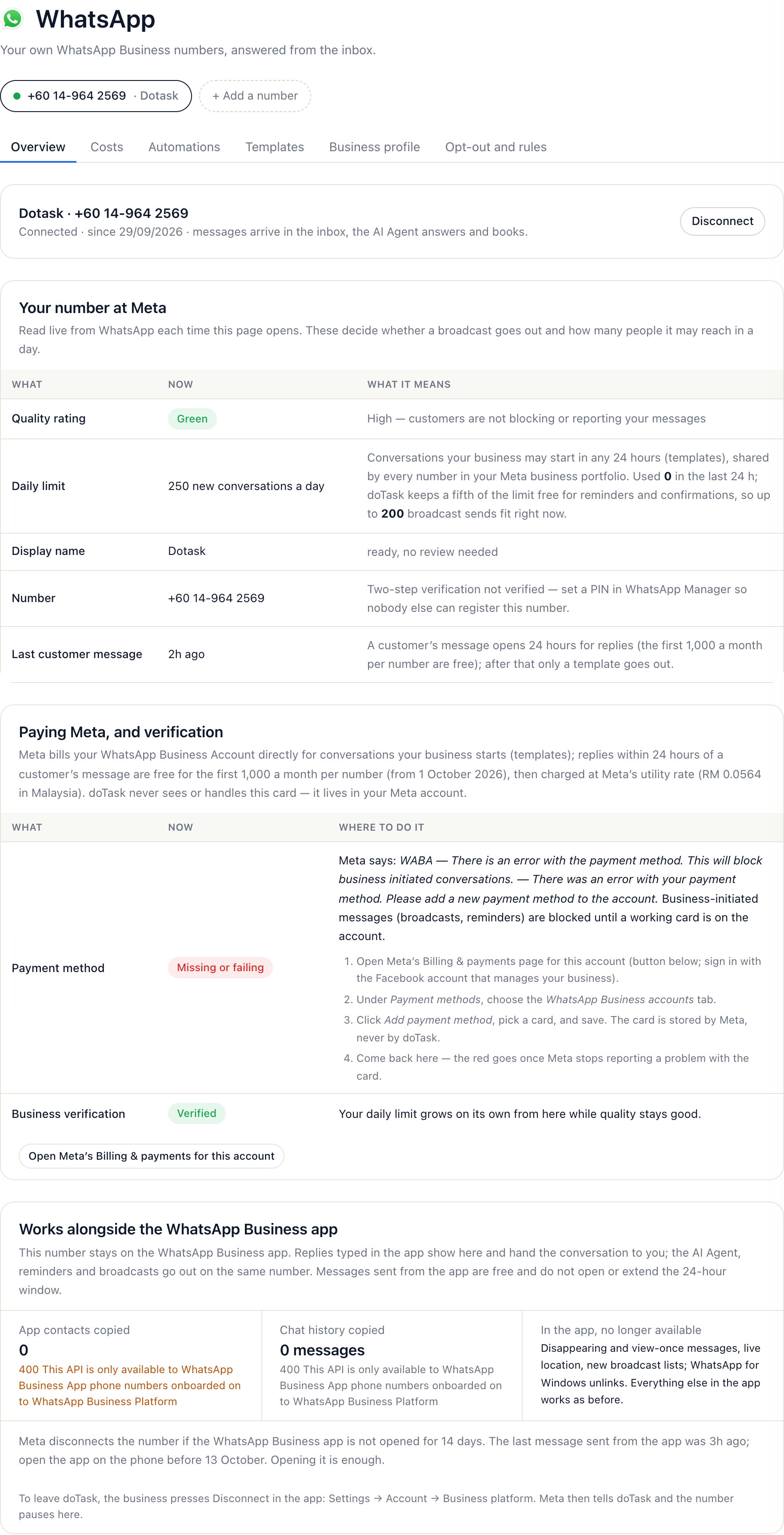
- Add a card in Meta: Overview tab → Paying Meta, and verification → Open Meta’s Billing & payments → Payment methods → WhatsApp Business accounts → Add payment method. Without one, Meta blocks broadcasts and reminders, and from 1 October 2026 stops replies past the free 1,000 a month.
- Set a two-step PIN in WhatsApp Manager (your number → Two-step verification) so nobody else can register the number.
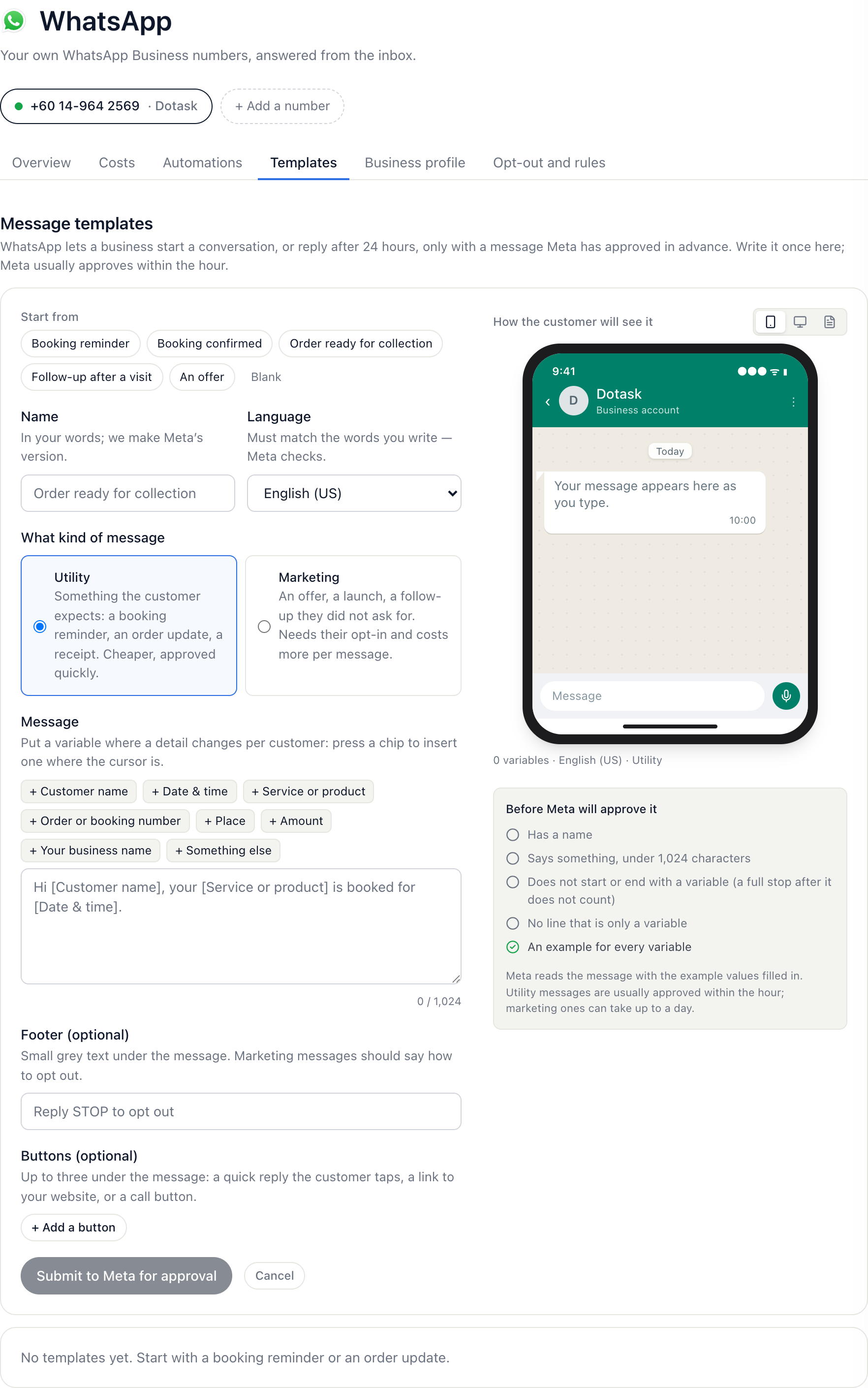
- Create your first template on the Templates tab (a booking reminder, an order update). Meta approves it, usually within the hour; you need one to message a customer more than 24 hours after they last wrote.
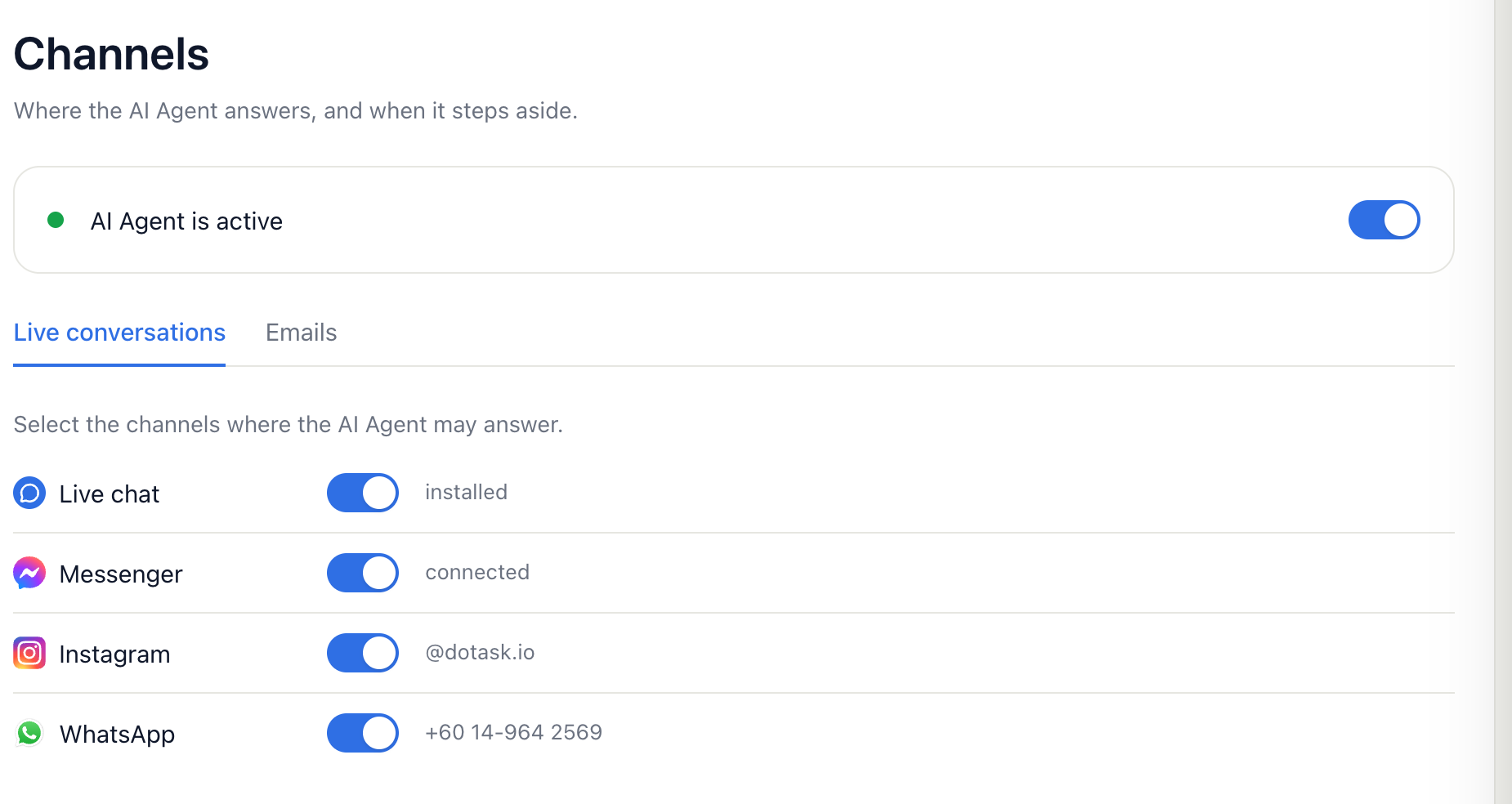
- Decide whether the AI Agent answers on this number: AI Agent → Channels has one switch per number.
- Number on the WhatsApp Business app: open the app at least once every 14 days. doTask emails a reminder after 10 quiet days.
What WhatsApp costs
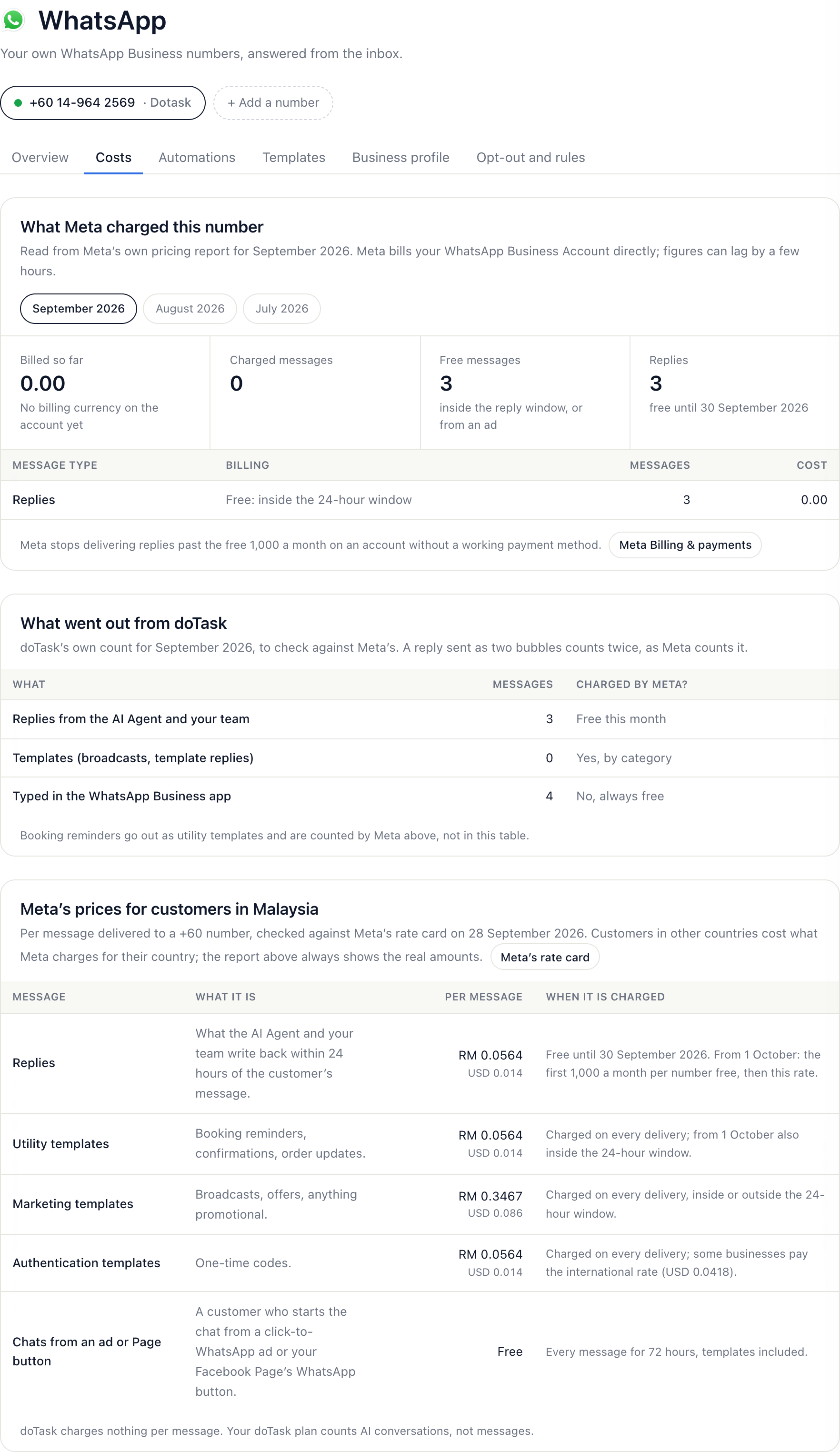
Meta charges your own Meta account per message delivered; doTask charges nothing per message. Replies within 24 hours of the customer’s message are free until 30 September 2026; from 1 October 2026 the first 1,000 a month per number are free, then RM 0.0564 each for customers in Malaysia. Templates you send first are charged every time (utility RM 0.0564, marketing RM 0.3467). Chats that start from a click-to-WhatsApp ad or your Facebook Page’s WhatsApp button are free for 72 hours. Replies typed in the WhatsApp Business app are free.
- Open the Costs tab on Settings → WhatsApp.
- The first card is what Meta actually billed this number this month, from Meta’s own report, with the free replies left.
- The second card is doTask’s own count; the third is Meta’s price list for Malaysian customers.
Adding another number
- Settings → WhatsApp → + Add a number, then the same steps 2 to 5.
- Your plan sets how many: Free and Starter one, Growth two, Business five. Plan and billing shows how many are in use.
- Each number has its own tabs, templates and AI switch. A STOP to any of your numbers stops broadcasts and reminders to that person from all of them.
Reference: the WhatsApp page
Several numbers: the row of numbers above the tabs switches between them, and “Add a number” connects another (Free and Starter include one, Growth two, Business five). Each number has its own templates, profile, health and AI switch (AI Agent → Channels); a conversation shows which of your numbers the customer wrote to, and a broadcast asks which number to send from. A STOP on any of your numbers stops broadcasts and reminders to that person from all of them. Disconnecting a number leaves the others working.
The page is in six tabs: Overview (your number at Meta, paying Meta, verification, the WhatsApp Business app), Costs (what Meta charged the number this month from Meta’s own report, how many of the 1,000 free replies are left, doTask’s own count, and Meta’s prices for customers in Malaysia), Automations (what acts on the number), Templates, Business profile, and Opt-out and rules (the STOP and START words, and the rules doTask keeps).
- Paying Meta, and verification — whether a payment method is on file (read from Meta), the business verification status, and buttons straight to Meta’s Billing & payments page and Security Center with the steps beside them.
- Your number at Meta — the quality rating (green, yellow, red), your business’s daily limit for business-initiated conversations (250, 2,000, 10,000…) with how much of it is used, the display-name status and when a customer last wrote. Read live from Meta; a yellow rating means slow marketing down and check who you send to; red holds marketing sends until it recovers. Below it, what Meta has said about the number: quality flags, paused templates, restrictions — also emailed to owners and admins.
- What happens on this number — the AI Agent, bookings and reminders, the calendar, Flows, broadcasts and consent, each with its state and the link to change it. This is the one place to see how the pieces connect: a customer books in the chat, the confirmation goes back on WhatsApp, the booking lands in your calendar, the reminder goes out as a template, and a returning customer can ask “when is my appointment?”.
- Business profile — what a customer sees when they tap your name: about, category, description, address, email, up to two websites. Saved to Meta directly; keep it accurate, Meta’s policy expects it.
- Words — your own STOP and START confirmations, in any language. Each must keep the way back (STOP’s text mentions START, START’s mentions STOP) or it is not saved.
- Templates — created here, reviewed by Meta, usable once approved.
The WhatsApp rules, kept for you
- 24 hours: after a customer writes, you and the AI Agent can reply freely for 24 hours. After that only an approved template can be sent — doTask refuses a free-form send outside the window rather than let Meta reject it.
- Consent before you start a conversation: a marketing template goes only to people who opted in to WhatsApp messages (a sign-up form, a Flow’s Subscribe step, a START reply, or consent you recorded under Customers → WhatsApp consent). A utility template — an appointment reminder, an order update — also reaches anyone who has written to you on WhatsApp. The broadcast page counts who is left out and why.
- STOP means stop: a customer who replies STOP, UNSUBSCRIBE or BERHENTI gets one confirmation and then nothing — no broadcast, no reminder, no AI reply — until they reply START. The footer of every template you create says so.
- A person is always reachable: the AI Agent hands over on “talk to a person”, complaints, refunds and anything it is unsure of, as Meta’s automation rules require.
- Only approved templates: templates are created here, reviewed by Meta, and can be sent only once approved. Keep utility templates free of promotion; Meta recategorizes and bills them as marketing otherwise.
- The daily limit, shared: Meta caps how many conversations a number may start in any 24 hours (250, then 1,000, 10,000… as quality stays high). A broadcast uses at most four-fifths of it and rolls the rest to when the window frees up — the composer says how many go now and how many follow, the results page says when — so booking reminders and confirmations, which count against the same limit, always have room.
Recommended templates (Templates tab, owners and admins, while the number has no approved template): the starters your business needs first — a booking reminder and confirmation with bookings on, order ready with a store or Checkout, a follow-up after a visit, and an offer once contacts have said yes to WhatsApp. A card opens New template filled with that starter. Nothing goes to Meta until you press Submit, Meta reviews every template, and a marketing template only ever goes to people who opted in.
Switched off: a number that was disconnected (yours, or Meta’s test number from setting up) stays in the workspace, paused, so its old conversations stay readable; it receives nothing. It is listed under Switched off on the Overview, with how many conversations it holds. Connect it again, or press Remove (owners and admins) to take it out of doTask for good: its conversations and their customers are deleted with it, after you confirm.